Archive · 21 September 2019
Free Oracle Cloud: 6. Create a VM Instance (Compute Cloud)
Written 7 years ago. Oracle APEX has moved on a lot since; check the current Oracle APEX posts too.
This post is part of a series of blog posts on the Best and Cheapest Oracle APEX hosting: Free Oracle Cloud.
In this post we will setup a virtual machine with Oracle Linux. If you need a machine in the Cloud, this service is for you… and you can’t beat the price, it’s FREE!
So why would you need a machine in the Cloud? For anything that you do on your own machine, you can do on your machine in the cloud. You can work with co-workers on the same app, test applications, host some PHP app or Wordpress blog or you name it. You have a full Oracle Linux machine where you can do whatever you want.
So lets get started to setup this machine, but first lets do one step on our own machine, as it’s a pre-requisite to get started: create an SSH key pair. In the link you find how you create a keypair on Windows, Linux and OSX. You can see your SSH key pair as a more secure way to enter your machine in the cloud than a username/password.
As I’m on OSX here’s the command I use:
ssh-keygen -t rsa -N “” -b 2048 -C “oraclecloud2019” -f oraclecloud2019
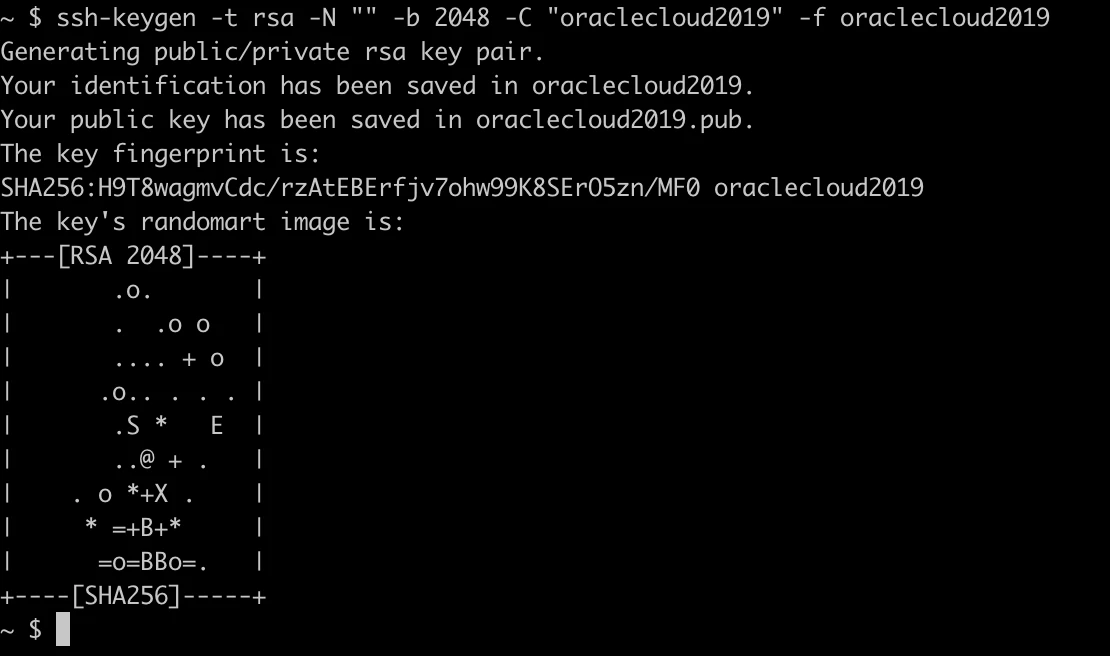
This will generate two files:

Now you are all set to setup your VM instance in the Oracle Cloud.
When you login to your Oracle Cloud account, select the Create a VM instance:
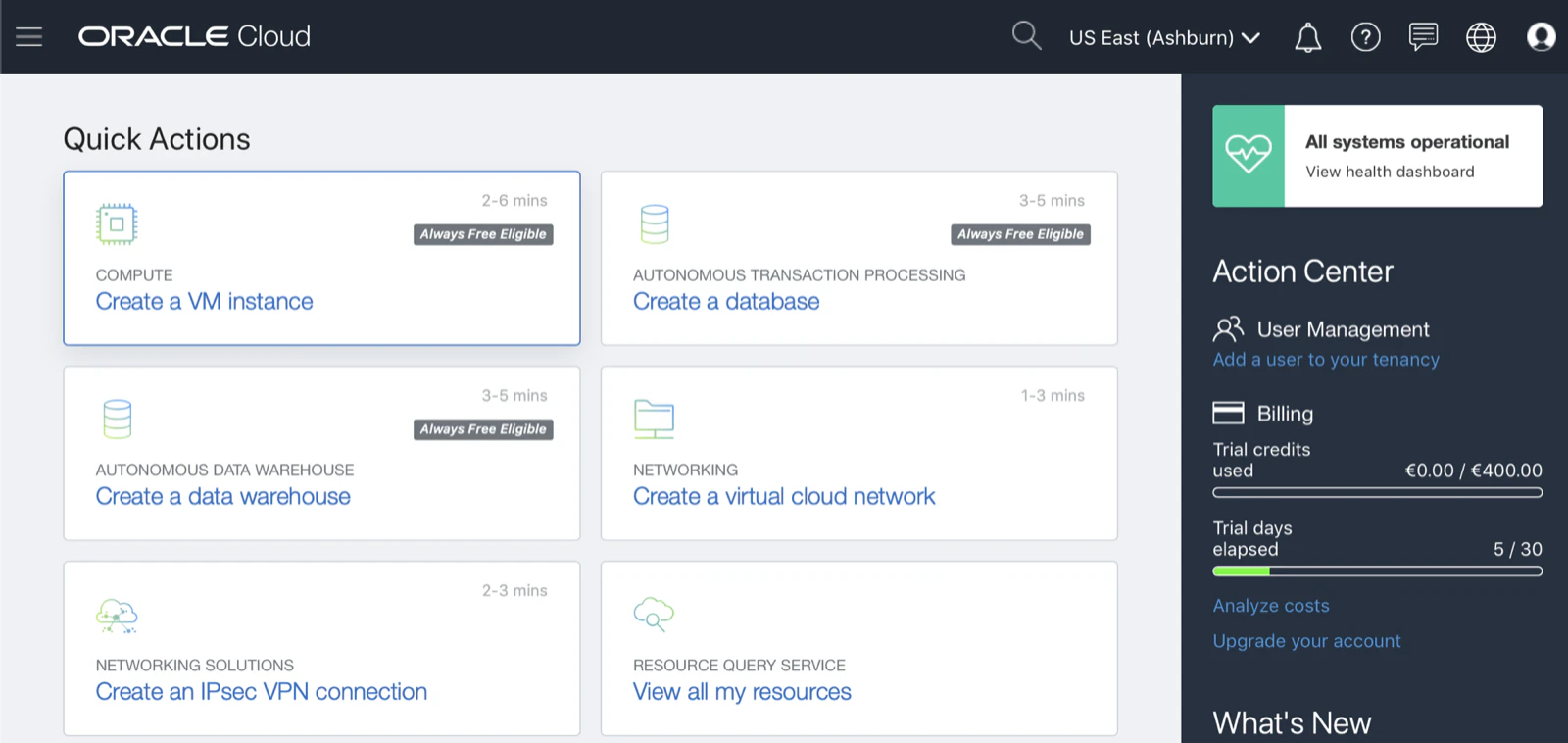
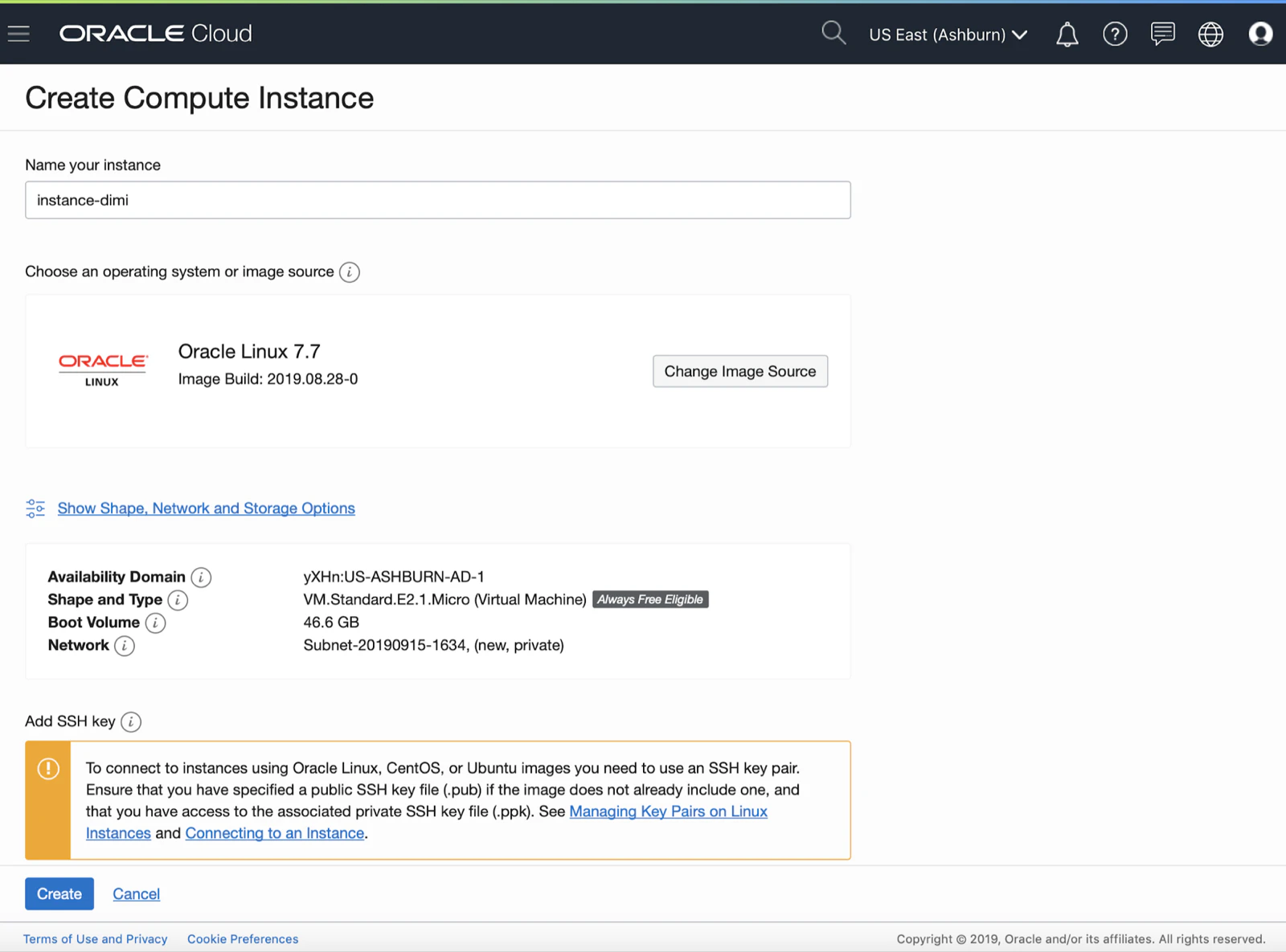
Give your instance a name:
When you scroll down, you see the section where you have to upload the SSH key file with the name .pub:
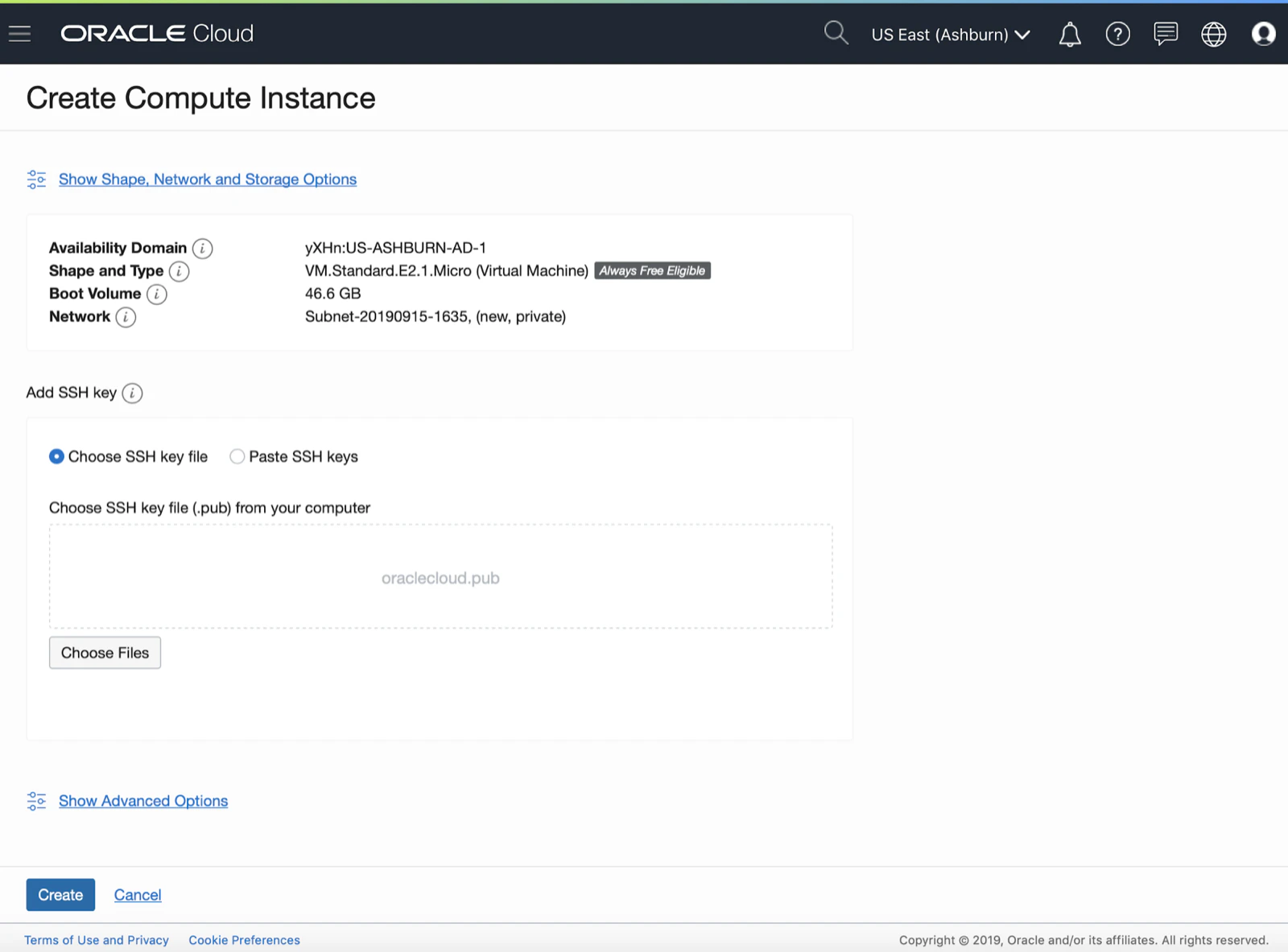
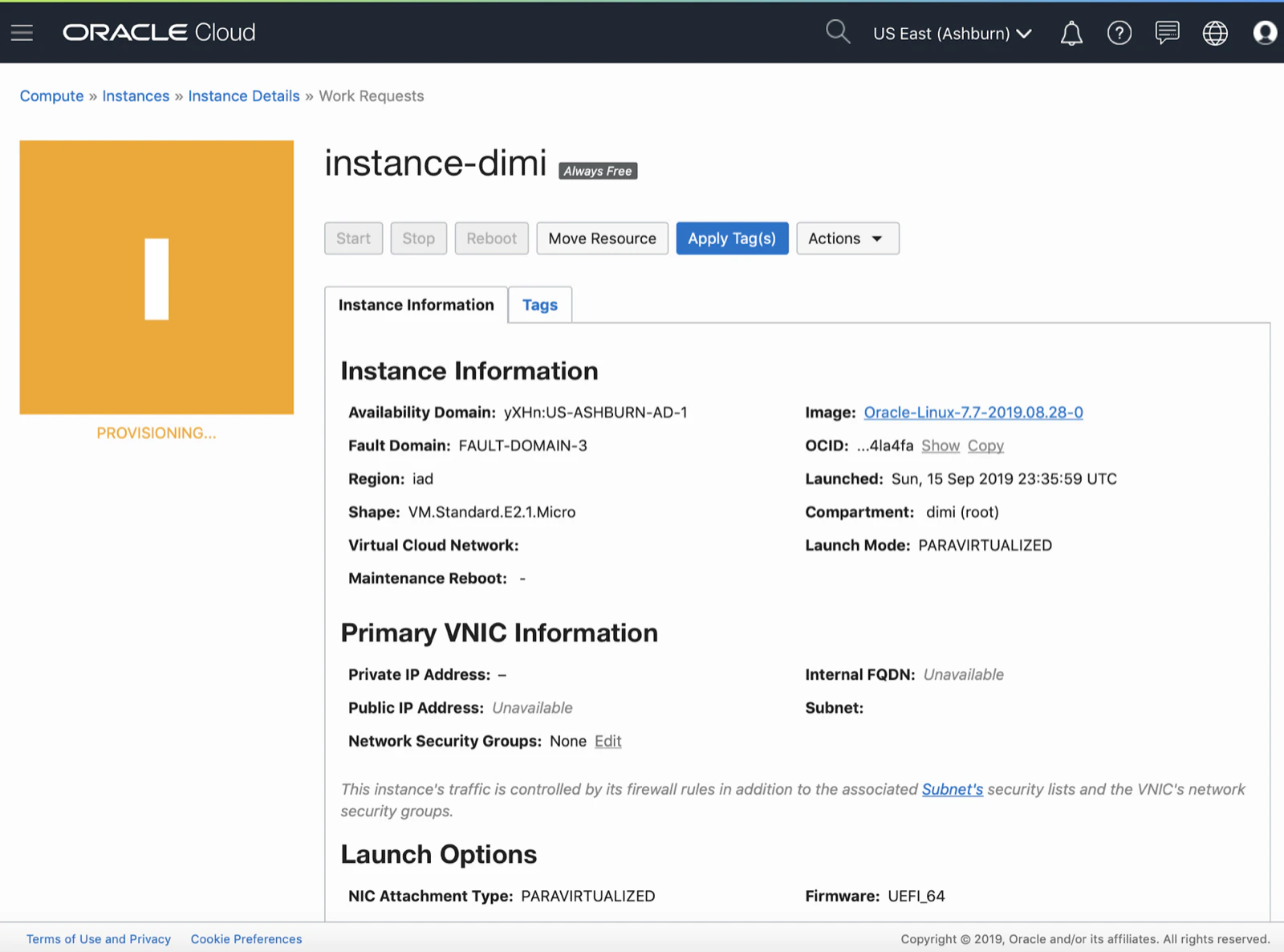
Hit the Create button and you are done… You will see the orange icon on the left stating it’s being orange provisioned:
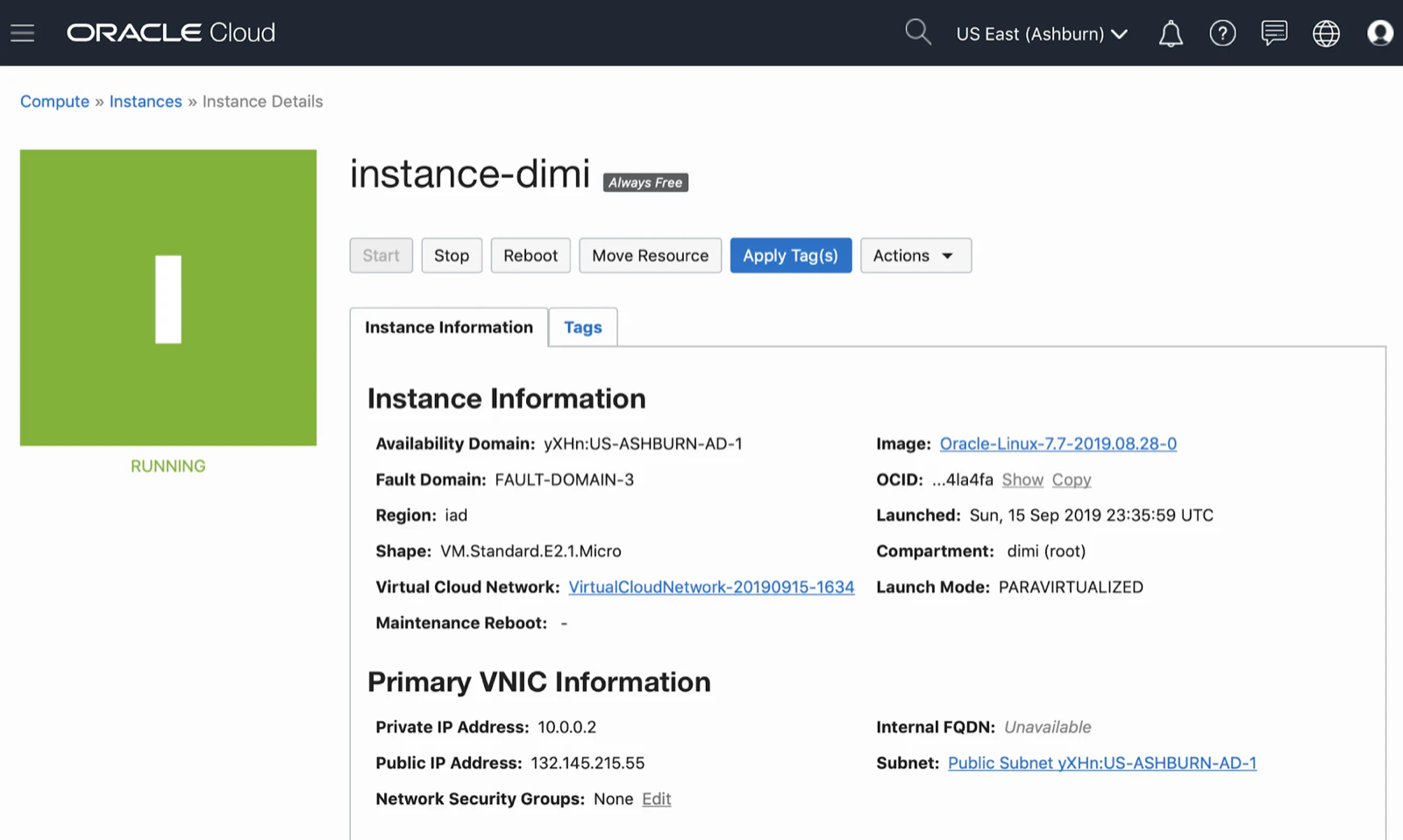
Once the provisioning is done the icon on the left will turn green and it’s ready to be used:
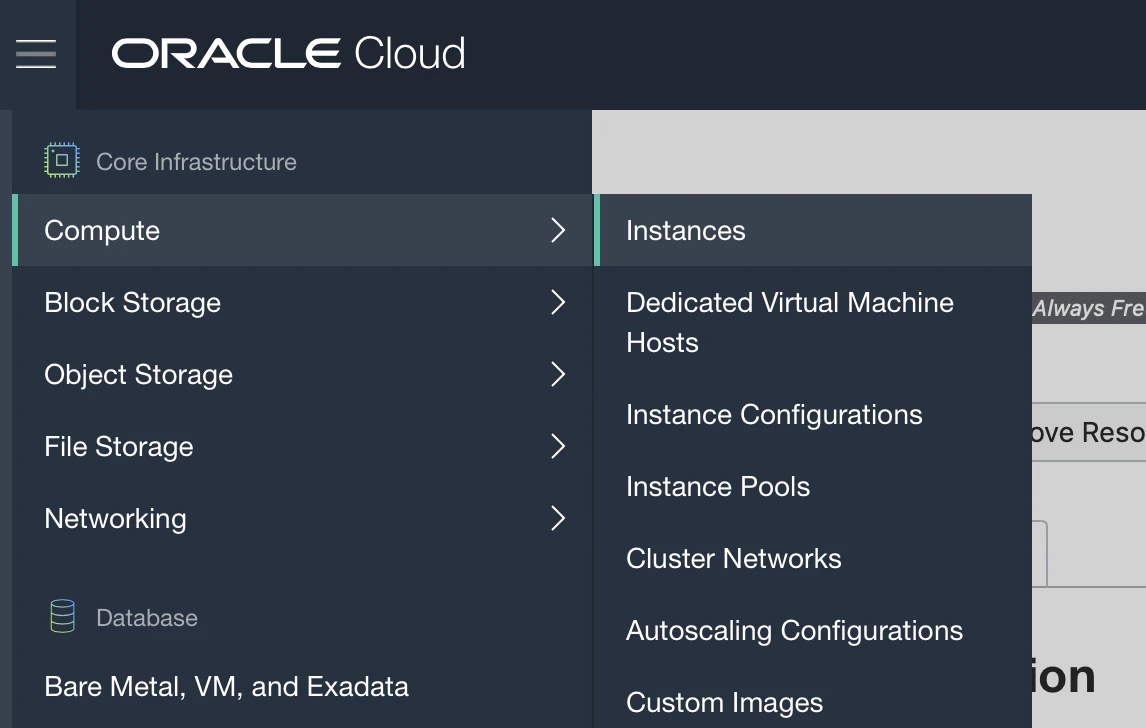
In case you don’t want to wait for the provisioning, you can always come back later by clicking the left top hamburger icon, and in the Compute section click on Instances:
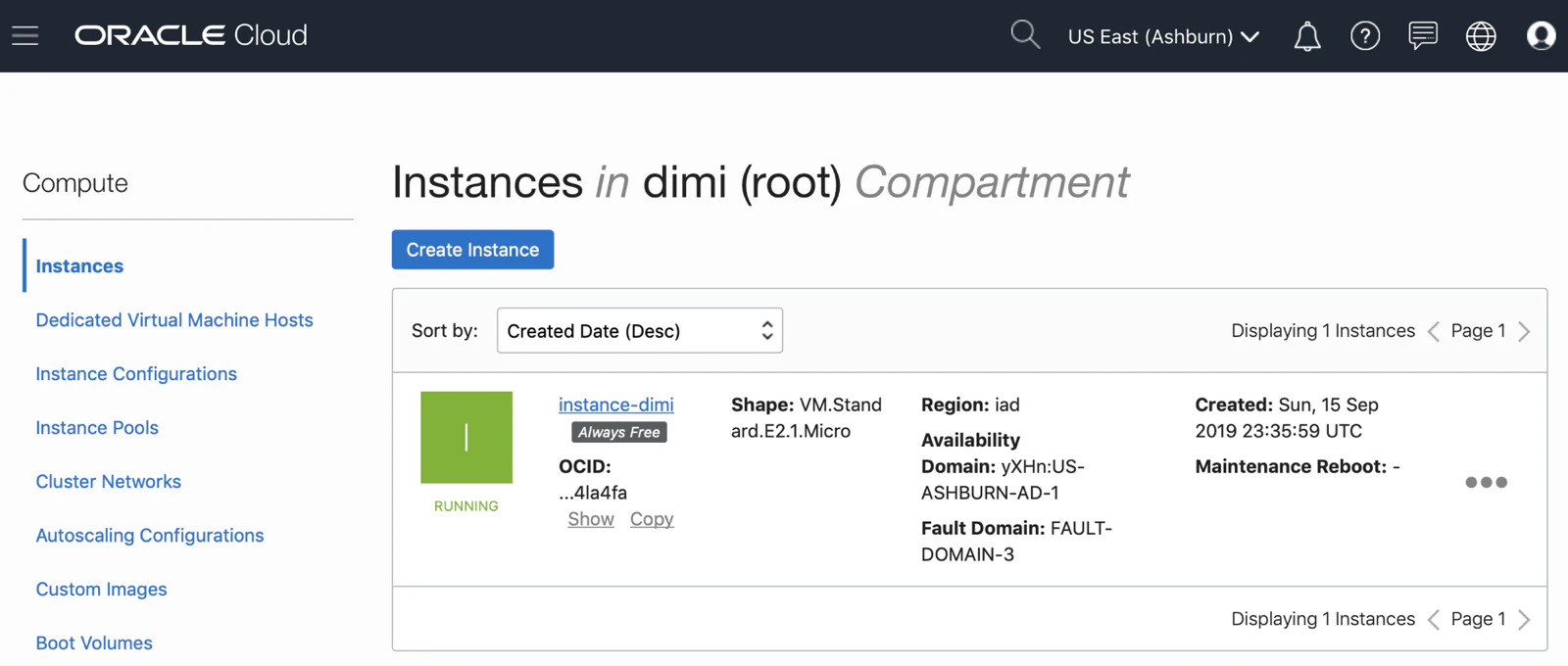
You will get an overview of your instances, see the status and go to the details from there:
Now if you want to connect to your VM in the Oracle Cloud you can use Putty (Windows) or SSH (Linux, OSX). The command looks like this:
ssh -i ssh_key opc@public_ip
The OPC user is the one you use to connect to an Oracle Compute (VM) Instance.
In the following screenshot you see me connecting to my Oracle Cloud VM (for security reasons I used another ssh key, normally it would have been oraclecloud2019 but as I exposed that with my screenshot I setup another one):
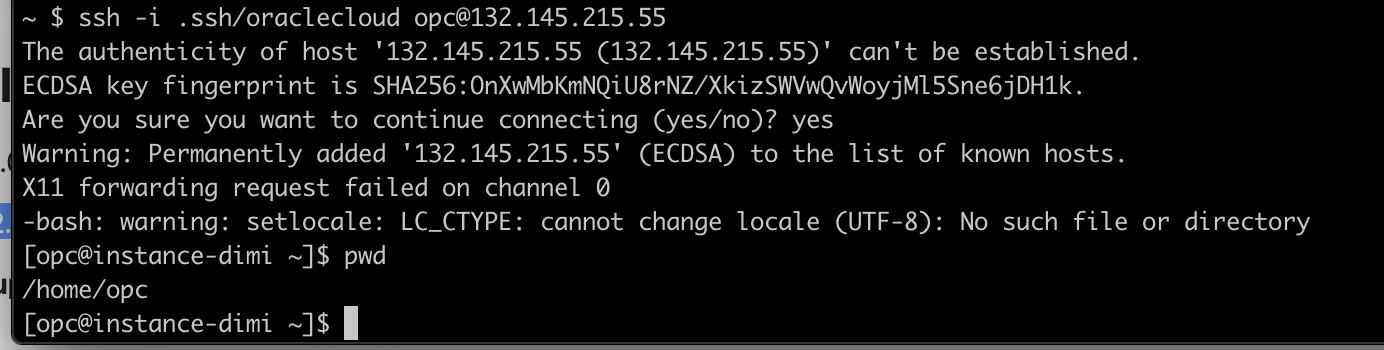
There you go, now you have a full system running in the Cloud. In the next post we will setup a webserver on this machine and configure a custom domain.
Originally published on Blogspot.
Comments
No comments yet. Be the first.