Archive · 14 September 2015
Report Carousel in APEX 5 UT
Written 11 years ago. Oracle APEX has moved on a lot since; check the current Oracle APEX posts too.
The Universal Theme in APEX 5.0 is full of nice things.
Did you already see the Carousel template for Regions?
When you add a region to your page with a couple of sub-regions and you give the parent region the “Carousel Container” template it turns the regions into a carousel, so you can flip between regions.
I was asked to have the same functionality but than on dynamic content.
So I decided to build a report template that would be shown as carousel. Here’s the result:
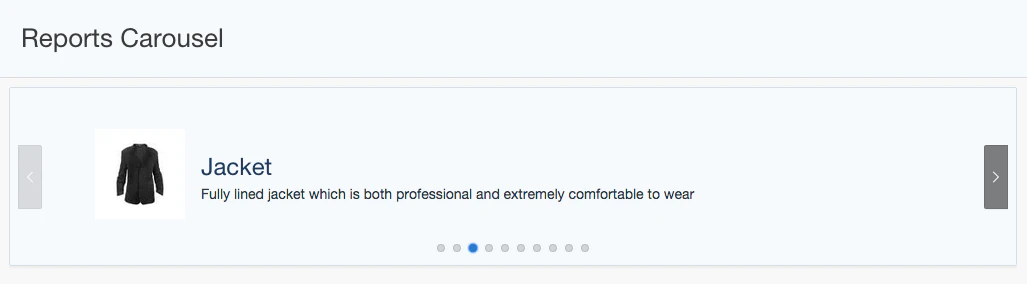
You can see it in action at https://www.apexrnd.be/ords/f?p=ADVANCED_UT:REPORT_CAROUSEL:0:::::
I really like carousels :)
Here’s how you can have this report template in your app:
- Create a new Report Template:
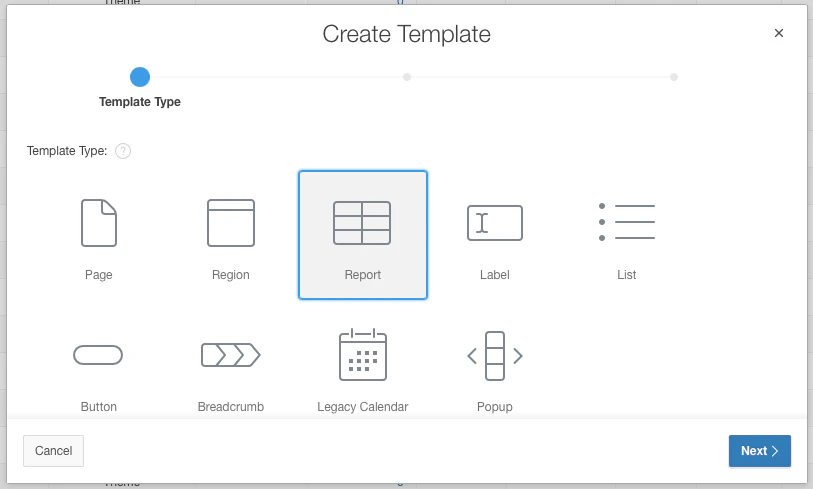
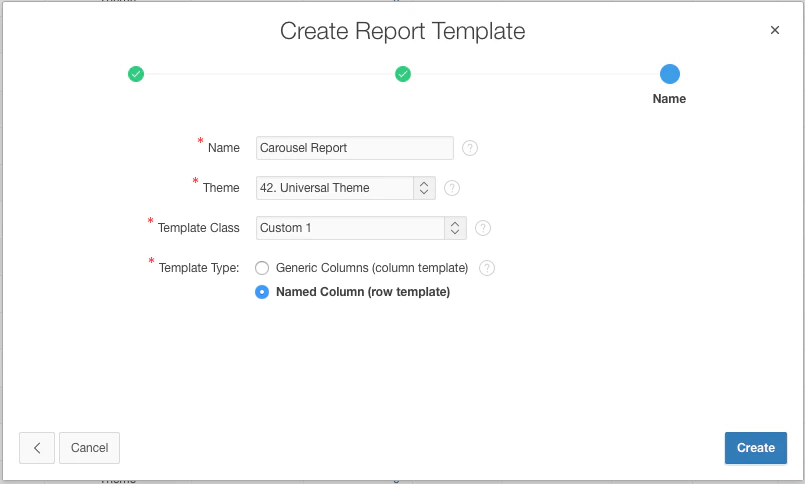
Make sure to select Named Column for the Template Type:
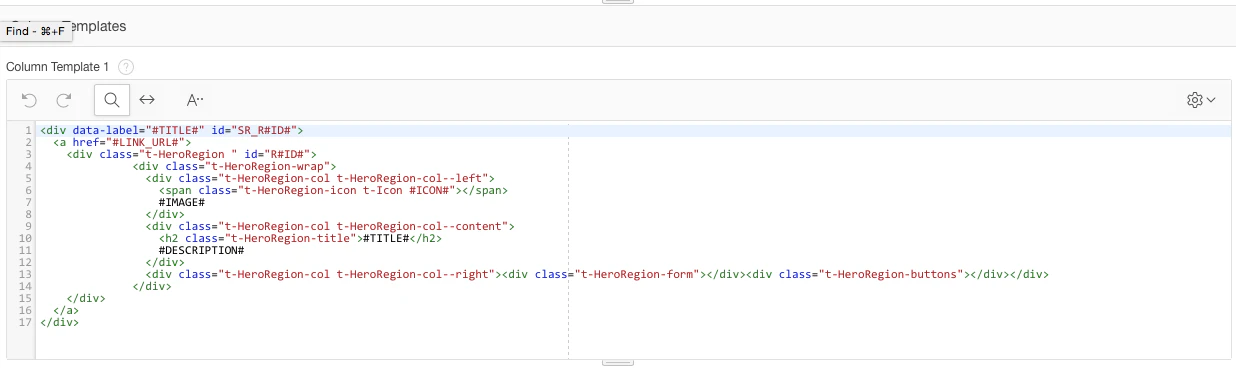
Add following HTML into the template at the given points:


That’s it for the template.
Now you can create a new report on your page and give it the template you just created.
Here’s the SQL Statement I used:
select PRODUCT_ID as id,
PRODUCT_NAME as title,
PRODUCT_DESCRIPTION as description,
product_id,
dbms_lob.getlength(PRODUCT_IMAGE) as image,
‘no-icon’ as icon,
null as link_url
from DEMO_PRODUCT_INFO
Note 1: that you have to use the same column aliases as you defined in the template.
Note 2: make sure you keep the real id of your image in the query too, as otherwise you’ll get an error (no data found)
To make the carousel a bit nicer I added following CSS to the page, but you could add it to your own CSS file or in the custom css section of Theme Roller.
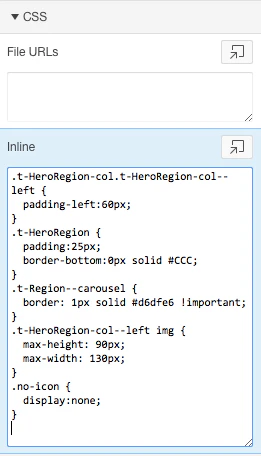
Note: the carousel can work with an icon or an image. If you want to see an icon you can use for example “fa-edit fa-4x”. When using an image, define the icon as no-icon.
Eager for more Universal Theme tips and tricks? check-out our APEX 5.0 UI training in Birmingham on December 10th. :)
For easier copy/paste into your template, you find the source below:
 *** Before Rows ***
 <div class="t-Region t-Region--carousel t-Region--showCarouselControls t-Region--hiddenOverflow" id="R1" role="group" aria-labelledby="R1_heading">
  <div class="t-Region-bodyWrap">
   <div class="t-Region-body">
   <div class="t-Region-carouselRegions">
 *** Column Template ***
 <div data-label="#TITLE#" id="SR_R#ID#">
  <a href="#LINK_URL#">
   <div class="t-HeroRegion " id="R#ID#">
        <div class="t-HeroRegion-wrap">
         <div class="t-HeroRegion-col t-HeroRegion-col--left">
          <span class="t-HeroRegion-icon t-Icon #ICON#"></span>
          #IMAGE#
         </div>
         <div class="t-HeroRegion-col t-HeroRegion-col--content">
          <h2 class="t-HeroRegion-title">#TITLE#</h2>
          #DESCRIPTION#
         </div>
         <div class="t-HeroRegion-col t-HeroRegion-col--right"><div class="t-HeroRegion-form"></div><div class="t-HeroRegion-buttons"></div></div>
        </div>
   </div>
  </a>
 </div>
 *** After Rows ***
   </div>
   </div>
  </div>
 </div>
 *** Inline CSS ***
 .t-HeroRegion-col.t-HeroRegion-col--left {
  padding-left:60px;
 }
 .t-HeroRegion {
  padding:25px;
  border-bottom:0px solid #CCC;
 }
 .t-Region--carousel {
  border: 1px solid #d6dfe6 !important;
 }
 .t-HeroRegion-col--left img {
  max-height: 90px;
  max-width: 130px;
 }
 .no-icon {
  display:none;
 }
Originally published on Blogspot.
Comments
No comments yet. Be the first.