Archive · 11 March 2015
APEX 5.0: pimping the Login page
Written 11 years ago. Oracle APEX has moved on a lot since; check the current Oracle APEX posts too.
When you create a new application in APEX 5.0, the login page probably looks like this:
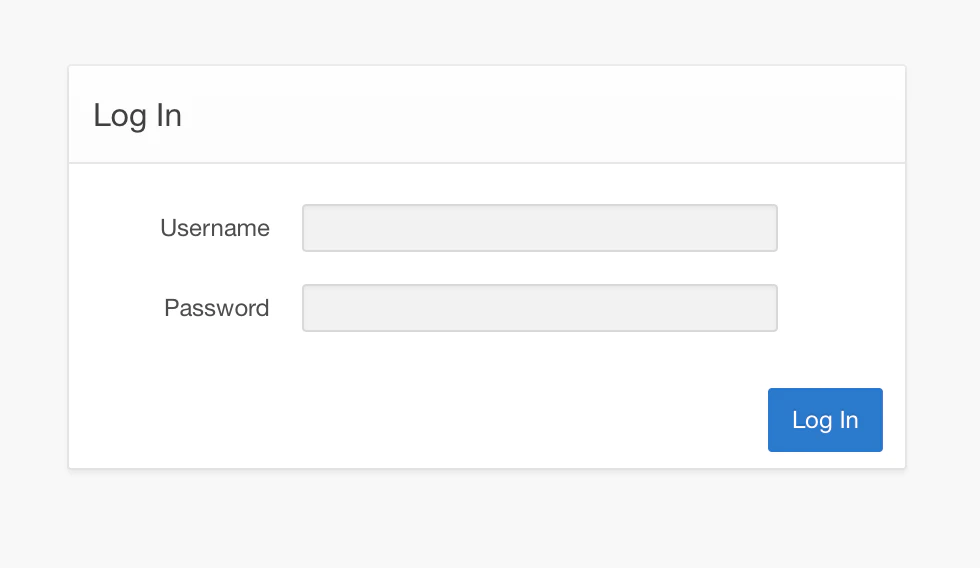
I love the build-in login page of APEX itself - luckily it’s easy enough to build that in our own apps too. Thank you APEX Dev team!
The first step is to change the region type to be of Login Region Template:
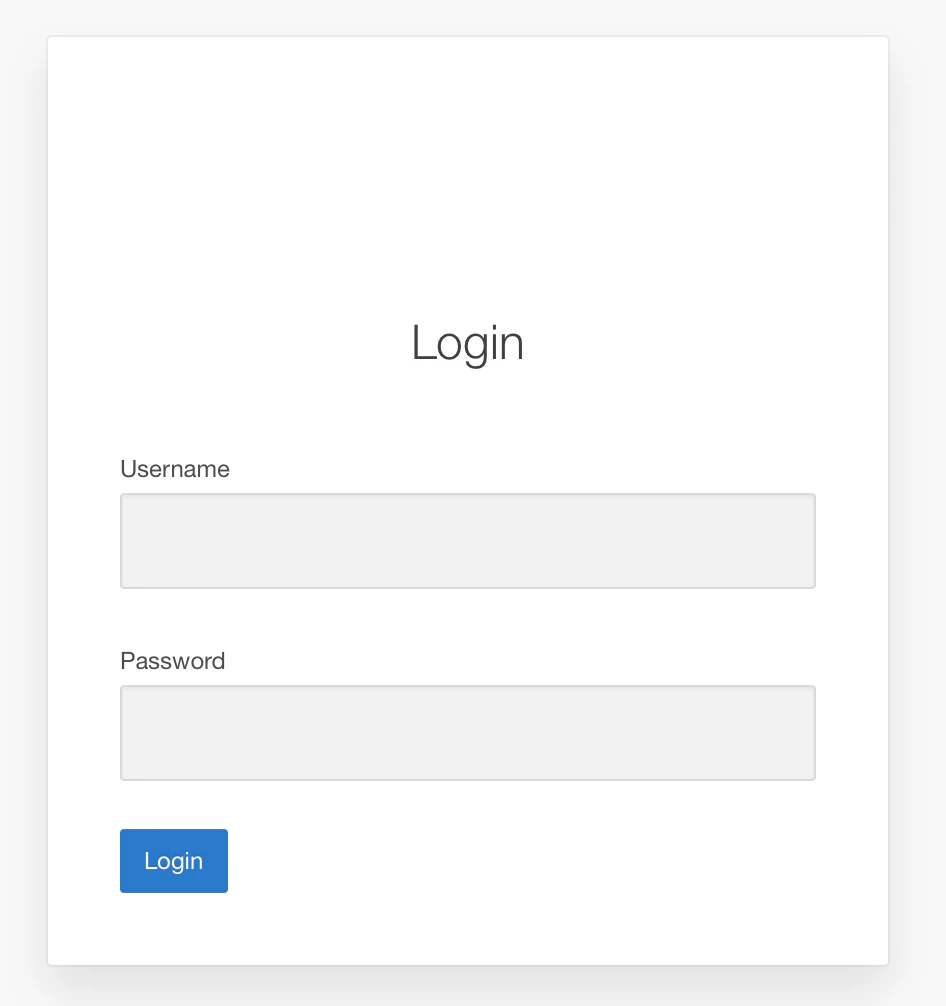
We want to add a nice icon on top of the Login text. You can use the Icon CSS Class in the Region options - in this case I opted for fa-medkit:

Next up is making the Login button bigger and make it the complete width like the items.
In APEX 5.0 you can use the Template Options to do that:
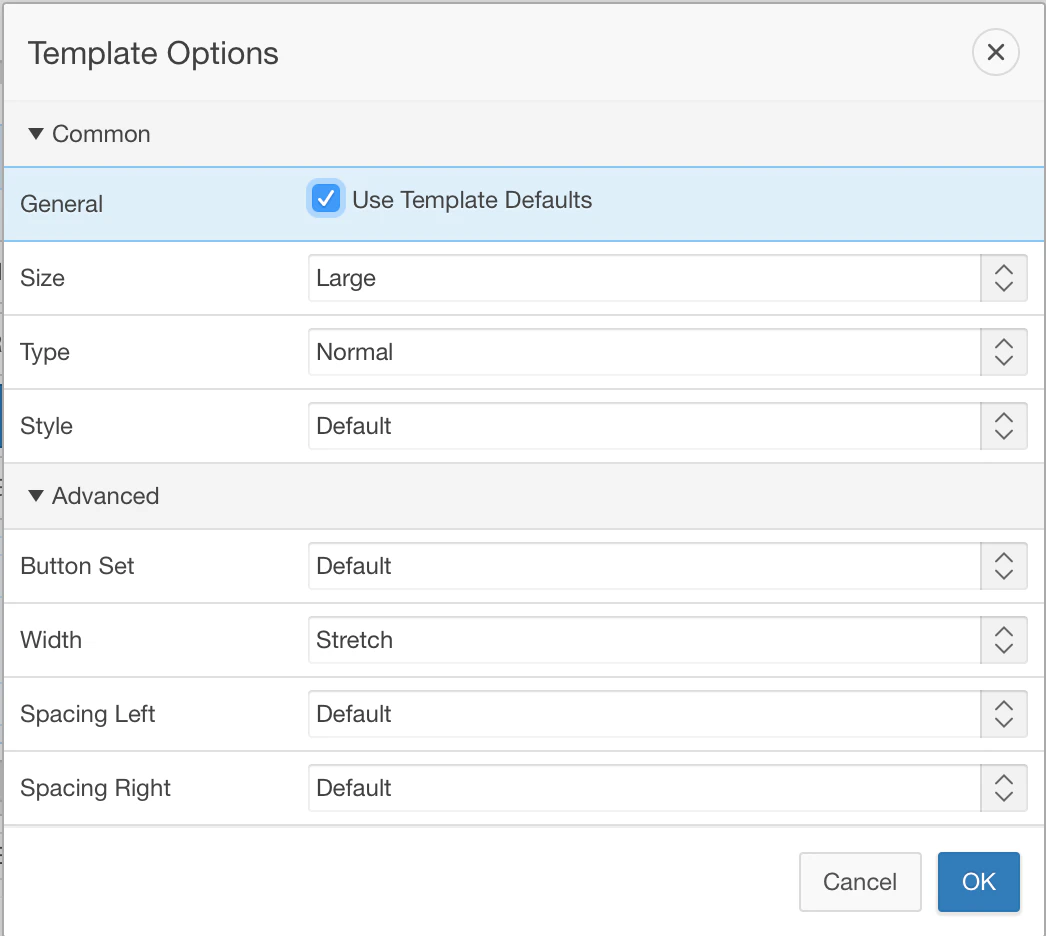
Once we stretched the Login button it fits the entire size.
Next up is getting some icons in the username and password field.
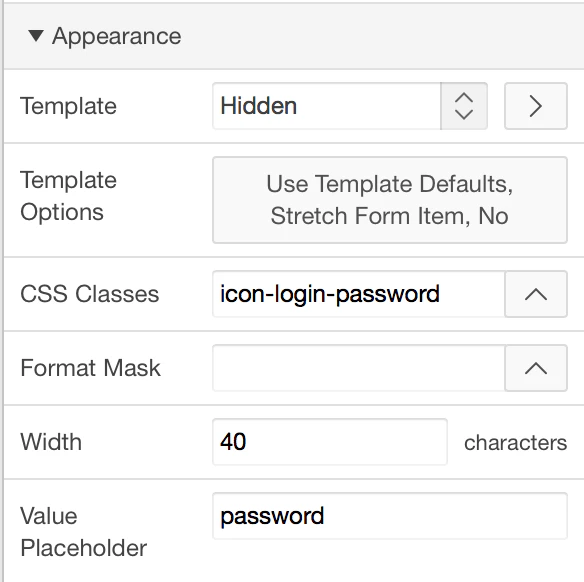
For the username we use the “icon-login-username” css class.
Instead of the label we make that hidden and specify a placeholder, so before you start typing you see the word username and when you start typing the text disappears.
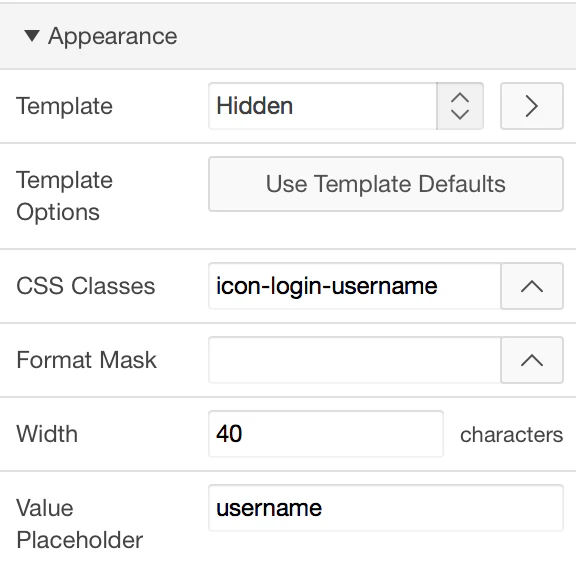
For the password field we do the same thing, but for the css class we specify “icon-login-password”.
Finally your login screen looks like this:
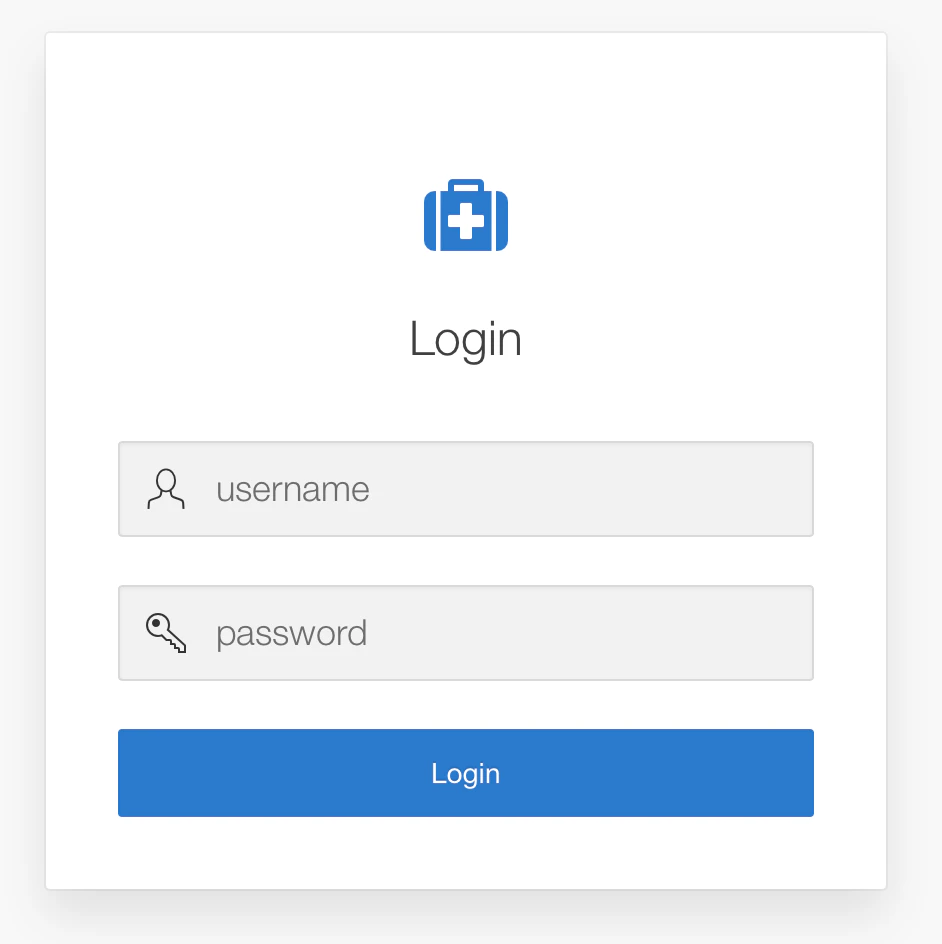
Great? Absolutely - and so easy with APEX 5.0!
What’s next? Is there anything better? Euh… yes, what about live validation?
Sure we can do that in APEX 5.0 without too much hassle :)) Thanks once again APEX Dev Team!
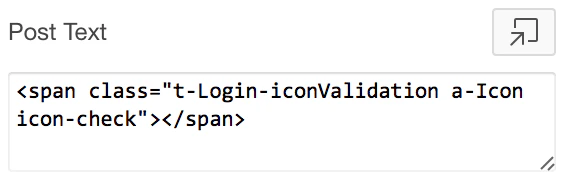
In the item make sure the item is set to Value Required and add in the Post Text following span:
That will give you a nice visual indication if you entered text:
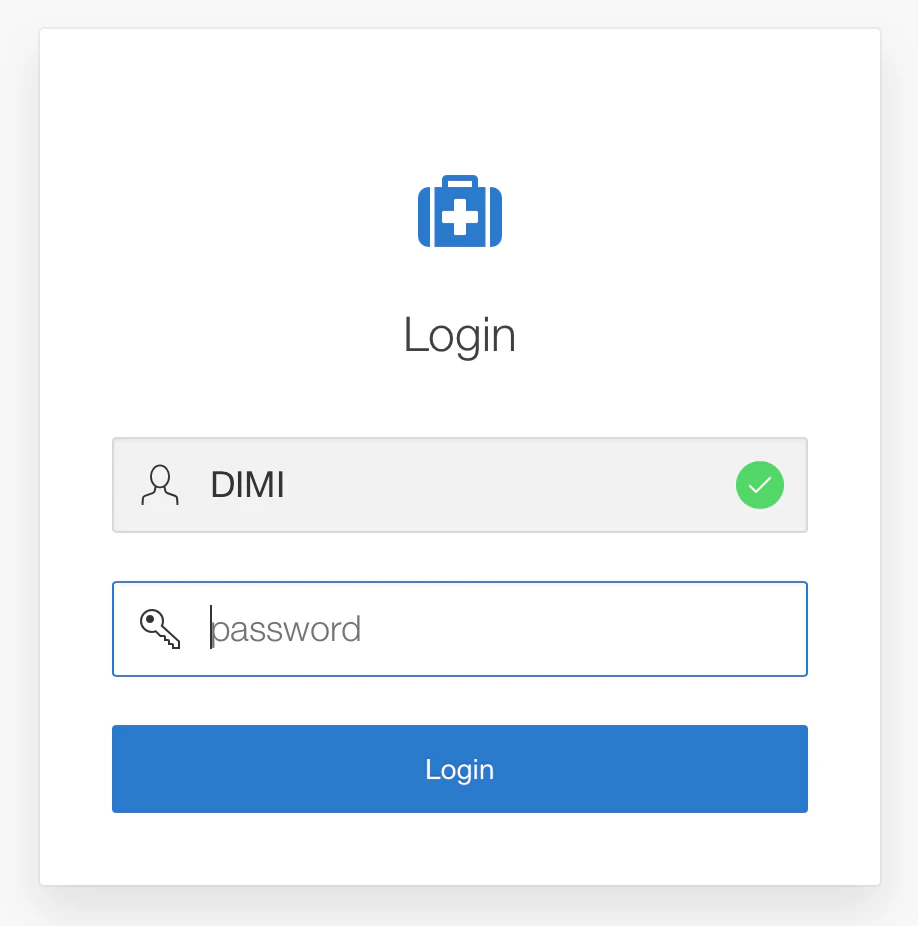
Cool? Creating login pages in APEX 5.0 is … (you fill in the word)
Interested in more? We’re doing an APEX 5.0 UI Training in May.
Originally published on Blogspot.
Comments
No comments yet. Be the first.