Archive · 18 January 2015
Setting up your own local Oracle Development environment in less than 15 minutes
Written 11 years ago. Oracle APEX has moved on a lot since; check the current Oracle APEX posts too.
The fastest and easiest way to setup your own local Oracle Development environment is by using the “Oracle Technology Network Developer Day” Database Virtual Box Appliance.
It contains:
- Oracle Linux 7
- Oracle Database 12c (12.1.0.2) EE (CDB/PDB)
- Oracle Rest Data Services (ORDS)
- Oracle Application Express (APEX)
- Oracle SQL Developer and Oracle SQL Developer Data Modeler
Step 1: Download and install Oracle VM VirtualBox
Step 2: Download the VM image that contains all the pieces you need
Step 3: Import the VM: File > Import Appliance
Done…
You can now start using the VM.
Some extra steps I did was adding a Shared folder and setup the Network connection
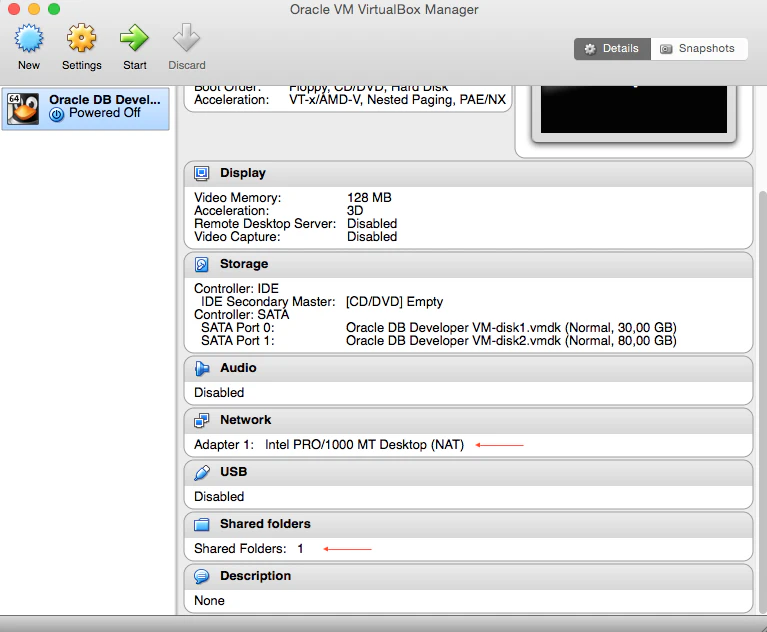
Once you add the Shared Folder open up a Terminal in your VM and type: “mount -t vboxsf Downloads /mnt” (Downloads is my OSX Downloads folder and /mnt is my mount directory in VirtualBox), that makes it easier to transfer files to the VM.
Here’s a screenshot once you run the VM:
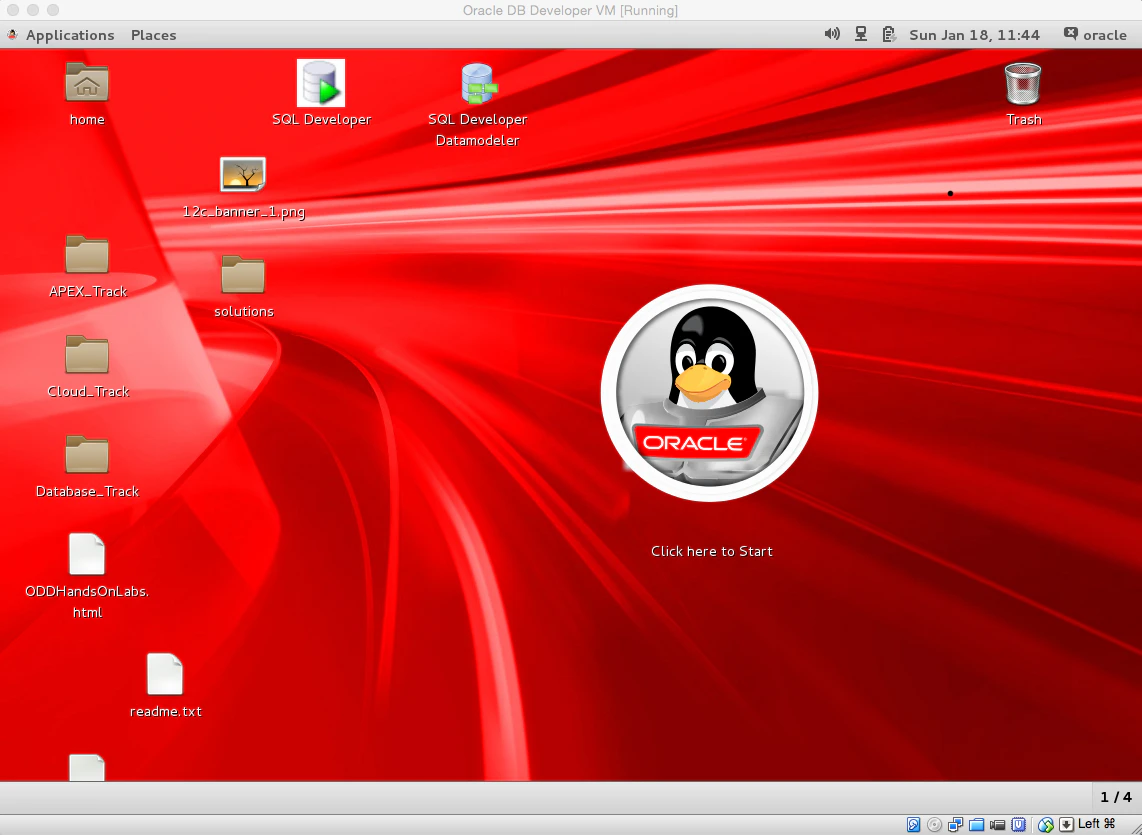
The nice thing with this VM is that everything is ready to be used and it includes labs, so you can do some exercises too and there’s even a reset script to put everything back how it was.
Exercises are available for: Database 12c (including JSON, XML DB, …), SQL Developer, APEX, REST Data Services and Cloud Services.
Who said installing Oracle was hard? :)
Originally published on Blogspot.
Comments
No comments yet. Be the first.