Archive · 15 October 2012
Changing to Responsive Theme in APEX 4.2
Written 14 years ago. Oracle APEX has moved on a lot since; check the current Oracle APEX posts too.
If you read my previous post about APEX 4.2 being in production you know I really like Responsive web design.
So what does it take to change your current theme to a responsive theme in APEX 4.2?
The first thing you have to do is create a new theme based on “Theme 25: Blue Responsive”. Go to Shared Components > Themes and follow the wizard to create a new (Desktop) theme from the repository.
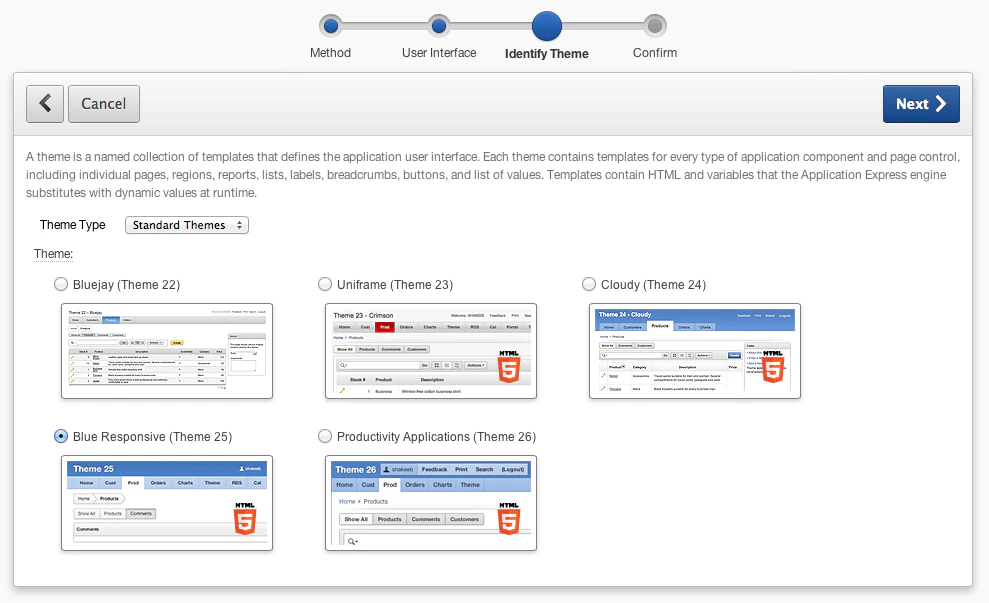
Once you created the new theme you need to follow the wizard to switch your themes.
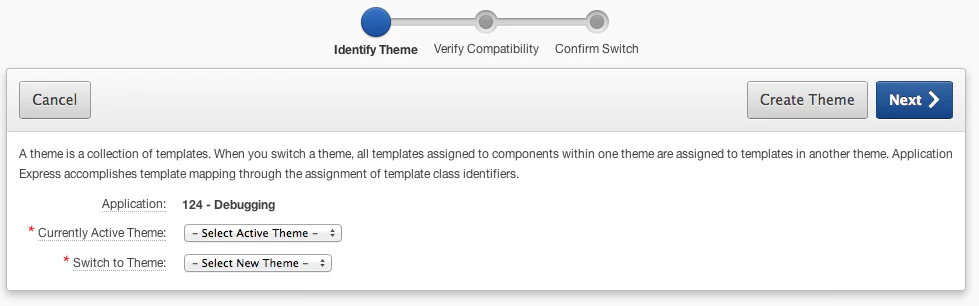
Note that if you customised your current theme to include for example some custom JQuery libraries or your own css files, those won’t be included in the new theme. You can always add that later.
But once you switched your theme, that is about it… you have now a responsive theme and your app is using it… but here’s the catch… it might not use it yet to the full extend and it might not respond as you would like it to do. The reason is your regions and page items are now making use of the new Grid Layout, but the wizard did only as good as it could, so you need to verify every page yourself and see if it looks like you want.
Let’s take the example of the Feedback Page in an old Sample Database Application I had in my workspace. After I switched the theme the page looked like this:
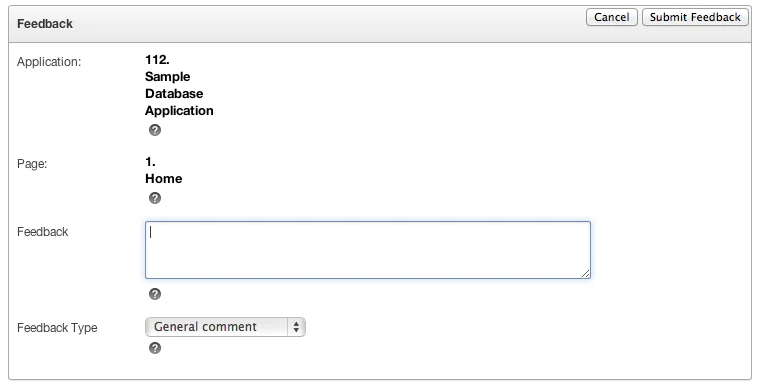
Not really nice heh? The display only text is shifting down and the icons are not next to the items, instead they are underneath. Also the buttons seem a bit small in this design.
Here’s the backend of the page:
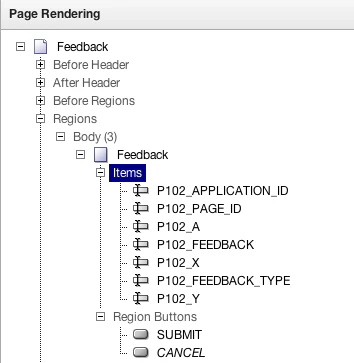
You see P102_A, P102_X and P102_Y? Those are Start Stop Table item types, to align items and buttons nicer…
Note that in APEX 4.2 that item got renamed to Stop and Start Grid Layout and it is even deprecated now… and that makes perfectly sense, table based layout is passé, welcome to div and css or even better HTML5 and CSS3!
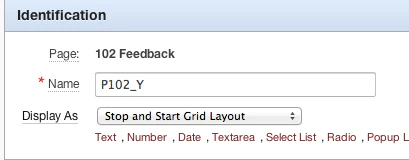
So first thing I would do is just get rid of those items.
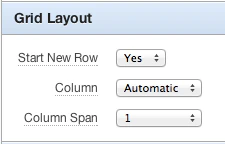
The next big thing is how the items are set on the grid. The wizard moved the items on Column Span 1 (so it starts on Row 1 and it takes only the first column of the grid, in total there are 12 columns in the grid). It looks like one column span is a bit small for our content, so either you make that bigger, or you put Column Span to Automatic so APEX itself figures out what to do, which I would recommend (to start with at least).
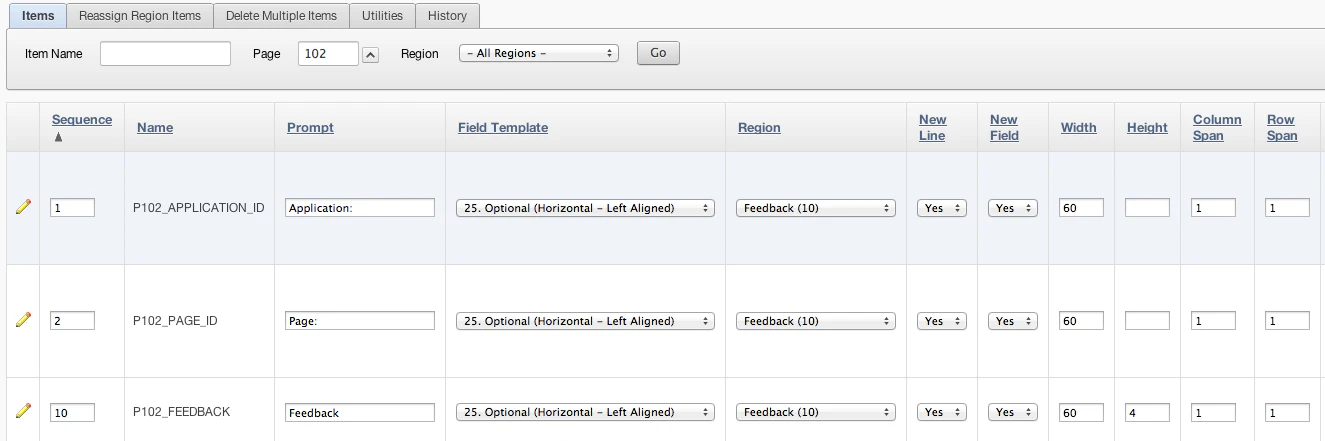
If you have many items and you don’t want to go into every item separately you can right click in the tree view and “Edit All” page items at once. You need to remove the one in Column Span for every item, that will set it to Automatic.
To make our Feedback page a bit nicer, change the region template to “Alert Region”.
Edit the buttons and chose the Large Button (Hot) as the template.
Run your feedback page again and this is the result:
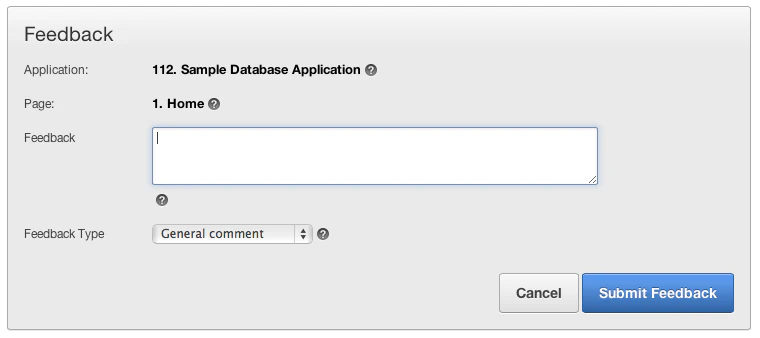
I know which one I prefer :-)
Originally published on Blogspot.
Comments
No comments yet. Be the first.