Archive · 19 October 2006
DG Tournament Explained (1) - Thumbnail Expander
Written 20 years ago. Oracle APEX has moved on a lot since; check the current Oracle APEX posts too.
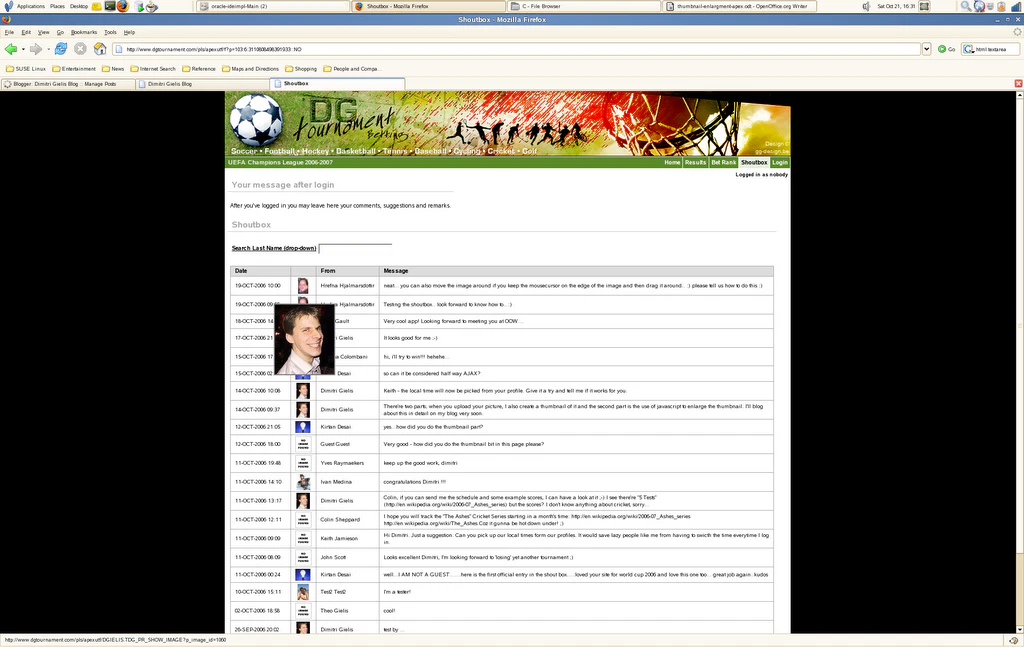
This is a first draft, as some people asked me to publish it as quick as possible. If you see it’s not working or I forgot some steps, put a comment. I’ll update it when time allows, as I’m at OOW and don’t have that much time.
While I’m blogging about the integration of the “Vevstein Thumbnail Expander” I see there’s a new version available, called Highslide JS.
I initially used version 1.1.2 (free version) in DG Tournament (site no longer online) but I recently upgraded to 2.0.4 (in my APEX dev environment - this version is free for non-commercial purposes).
You can implement the thumbnail expander in different ways. Having everything in the database (workspace_images), having it on the /i/ directory, … I’ll show the one I think it’s the fastest implementation.
OS-level
-
Download highslide 2.0.4 here.
-
Unzip the file
-
Copy the higslide directory to your /i/ or www dir. (for ex. oracle/product/10.2.0/db_2/Apache/Apache/htdocs)
APEX-level
- in shared components create a stylesheet and put this in:
.highslide {
cursor: url(highslide/graphics/zoomin.cur), pointer;
outline: none;
}
.highslide img {
border: 2px solid gray;
}
.highslide:hover img {
border: 2px solid white;
}
.highslide-image {
cursor: poiner; /* opera */
cursor: url(highslide/graphics/zoomout.cur), pointer;
border: 2px solid white;
}
.highslide-image-blur {
cursor: pointer;
cursor: hand;
}
.highslide-caption {
display: none;
border: 2px solid white;
border-top: none;
font-family: Verdana, Helvetica;
font-size: 10pt;
padding: 5px;
background-color: white;
}
.highslide-display-block {
display: block;
}
.highslide-display-none {
display: none;
}
.highslide-loading {
display: block;
color: white;
font-style: ‘MS Sans Serif’;
font-size: 9px;
font-weight: bold;
text-transform: uppercase;
text-decoration: none;
padding: 3px;
opacity: 0.60; /* w3c */
filter: alpha(opacity=60); /* ie */
border-top: 1px solid white;
border-bottom: 1px solid white;
background-color: black;
padding-left: 22px;
background-image: url(highslide/graphics/loader.gif);
background-repeat: no-repeat;
background-position: 3px 1px;
}
a.highslide-credits,
a.highslide-credits i {
padding: 2px;
color: silver;
text-decoration: none;
font-size: 10px;
}
a.highslide-credits:hover,
a.highslide-credits:hover i {
color: white;
background-color: gray;
}
-
in your template reference the created stylesheet and the javascripts, for ex. put:
<br /><link rel=“stylesheet” href=“#WORKSPACE_IMAGES#theme_TDG.css” type=“text/css”><br /><script type=“text/javascript” src=“highslide/highslide.js”></script><br /><script type=“text/javascript”> <br /> hs.graphicsDir = ‘highslide/graphics/’;<br /> hs.outlineType = null;<br /> window.onload = function() {<br /> hs.preloadImages();<br /> }<br /></script><br /> -
create a page and a region report. In the Image_id column add this as HTML Expression:
<br /><div style=“text-align:center;”><br /><a href=“http://not-a-real-namespace/http://not-a-real-namespace/http://not-a-real-namespace/http://not-a-real-namespace/http://not-a-real-namespace/http://not-a-real-namespace/http://not-a-real-namespace/http://not-a-real-namespace/http://not-a-real-namespace/http://not-a-real-namespace/http://not-a-real-namespace/http://not-a-real-namespace/http://not-a-real-namespace/http://not-a-real-namespace/http://not-a-real-namespace/http://not-a-real-namespace/http://not-a-real-namespace/http://not-a-real-namespace/http://not-a-real-namespace/http://not-a-real-namespace/http://not-a-real-namespace/http://not-a-real-namespace/http://not-a-real-namespace/http://not-a-real-namespace/http://not-a-real-namespace/#OWNER#.TDG\_PR\_SHOW\_IMAGE?p\_image\_id=#IMAGE\_ID#” class=“highslide” onclick=“return hs.expand(this)”><br /><img id=“thumb1” class=“vte-auto” src=“http://not-a-real-namespace/http://not-a-real-namespace/http://not-a-real-namespace/http://not-a-real-namespace/http://not-a-real-namespace/http://not-a-real-namespace/http://not-a-real-namespace/http://not-a-real-namespace/http://not-a-real-namespace/http://not-a-real-namespace/http://not-a-real-namespace/http://not-a-real-namespace/http://not-a-real-namespace/http://not-a-real-namespace/http://not-a-real-namespace/http://not-a-real-namespace/http://not-a-real-namespace/http://not-a-real-namespace/http://not-a-real-namespace/http://not-a-real-namespace/http://not-a-real-namespace/http://not-a-real-namespace/http://not-a-real-namespace/http://not-a-real-namespace/http://not-a-real-namespace/#OWNER#.TDG\_PR\_SHOW\_THUMBNAIL?p\_image\_id=#IMAGE\_ID#” title=“Click to enlarge” /><br /></a><br /></div><br /><!–<div class=“‘highslide-caption’” id=“‘caption-for-thumb1’”>#USER_NAME#</div>–><br /> -
create an other region with this (necessary for the pop-up):
<br /><div id=“highslide-container”></div><br /> -
create the procedures to show the thumbnail and real image:
<br />PROCEDURE “TDG_PR_SHOW_IMAGE” (p_image_id IN NUMBER)<br />AS<br /> l_mime VARCHAR2 (255);<br /> l_length NUMBER;<br /> l_file_name VARCHAR2 (2000);<br /> lob_loc BLOB;<br />BEGIN<br /> SELECT mime_type, image_blob, image_name, DBMS_LOB.getlength (image_blob)<br /> INTO l_mime, lob_loc, l_file_name, l_length<br /> FROM tdg_image<br /> WHERE image_id = p_image_id;<br /><br /> – Set up HTTP header<br /> – Use an NVL around the mime type and if it is a null, set it to<br /> – application/octect - which may launch a download window from windows<br /> OWA_UTIL.mime_header (NVL (l_mime, ‘application/octet’), FALSE);<br /> – Set the size so the browser knows how much to download<br /> HTP.p (’Content-length: ’ || l_length);<br /> HTP.p (’Expires: ’ || TO_CHAR (SYSDATE + 50, ‘Day, DD Month, YYYY HH24:MI:SS’));<br /> – The filename will be used by the browser if the users does a “Save as”<br /> HTP.p (‘Content-Disposition: attachment; filename=“’ || l_file_name || ‘”’);<br /> – Close the headers<br /> OWA_UTIL.http_header_close;<br /> – Download the BLOB<br /> wpg_docload.download_file (lob_loc);<br />END tdg_pr_show_image;<br /><br />PROCEDURE “TDG_PR_SHOW_THUMBNAIL” (p_image_id IN NUMBER)<br />AS<br /> l_mime VARCHAR2 (255);<br /> l_length NUMBER;<br /> l_file_name VARCHAR2 (2000);<br /> lob_loc BLOB;<br />BEGIN<br /> SELECT mime_type, thumbnail_blob, image_name, DBMS_LOB.getlength (thumbnail_blob)<br /> INTO l_mime, lob_loc, l_file_name, l_length<br /> FROM tdg_image<br /> WHERE image_id = p_image_id;<br /><br /> – Set up HTTP header<br /> – Use an NVL around the mime type and if it is a null, set it to<br /> – application/octect - which may launch a download window from windows<br /> OWA_UTIL.mime_header (NVL (l_mime, ‘application/octet’), FALSE);<br /> – Set the size so the browser knows how much to download<br /> HTP.p (’Content-length: ’ || l_length);<br /> HTP.p (’Expires: ’ || TO_CHAR (SYSDATE + 50, ‘Day, DD Month, YYYY HH24:MI:SS’));<br /> – The filename will be used by the browser if the users does a “Save as”<br /> HTP.p (‘Content-Disposition: attachment; filename=“’ || l_file_name || ‘”’);<br /> – Close the headers<br /> OWA_UTIL.http_header_close;<br /> – Download the BLOB<br /> wpg_docload.download_file (lob_loc);<br />END tdg_pr_show_thumbnail;<br />
*) A full explanation copied from one of the examples provided with the zip file.
<br /><!DOCTYPE html PUBLIC “-//W3C//DTD XHTML 1.1//EN” “xhtml11.dtd”><br /><html><br /><head><br /><title>Highslide JS</title><br /><!– 1 ) Reference to the file containing the javascript. This file must be located on your server. –><br /><script type=“text/javascript” src=“highslide/highslide.js”></script><br /><!– 2) Initialize the hs object and optionally override the settings defined at the top of the highslide.js file. The parameter hs.graphicsDir is important! –><br /><script type=“text/javascript”> <br /> hs.graphicsDir = ‘highslide/graphics/’;<br /> hs.outlineType = null;<br /> window.onload = function() {<br /> hs.preloadImages();<br /> }<br /></script><br /><!– 3) These CSS-styles are necessary for the script to work. You may also put them in an external CSS-file. See the webpage for documentation. –><br /><style type=“text/css”><br />* {<br /> font-family: Verdana, Helvetica;<br /> font-size: 10pt;<br />}<br />.highslide {<br /> cursor: url(highslide/graphics/zoomin.cur), pointer;<br /> outline: none;<br />}<br />.highslide img {<br /> border: 2px solid gray;<br />}<br />.highslide:hover img {<br /> border: 2px solid white;<br />}<br />.highslide-image {<br /> cursor: poiner; /* opera */<br /> cursor: url(highslide/graphics/zoomout.cur), pointer;<br /> border: 2px solid white;<br />}<br />.highslide-image-blur {<br /> cursor: pointer;<br /> cursor: hand;<br />}<br />.highslide-caption {<br /> display: none;<br /> border: 2px solid white;<br /> border-top: none;<br /> font-family: Verdana, Helvetica;<br /> font-size: 10pt;<br /> padding: 5px;<br /> background-color: white;<br />}<br />.highslide-display-block {<br /> display: block;<br />}<br />.highslide-display-none {<br /> display: none;<br />}<br />.highslide-loading {<br /> display: block;<br /> color: white;<br /> font-style: ‘MS Sans Serif’;<br /> font-size: 9px;<br /> font-weight: bold;<br /> text-transform: uppercase;<br /> text-decoration: none;<br /> padding: 3px;<br /> opacity: 0.60; /* w3c */<br /> filter: alpha(opacity=60); /* ie */<br /> border-top: 1px solid white;<br /> border-bottom: 1px solid white;<br /> background-color: black;<br /> padding-left: 22px;<br /> background-image: url(highslide/graphics/loader.gif);<br /> background-repeat: no-repeat;<br /> background-position: 3px 1px;<br />}<br />a.highslide-credits,<br />a.highslide-credits i {<br /> padding: 2px;<br /> color: silver;<br /> text-decoration: none;<br /> font-size: 10px;<br />}<br />a.highslide-credits:hover,<br />a.highslide-credits:hover i {<br /> color: white;<br /> background-color: gray;<br />}<br /></style><br /></head><br /><body style=“background-color: silver”><br /><!– 4) Create an empty container for the Highslide popups to live in. This container must be defined directly after the body tag. –><br /><div id=“highslide-container”></div><br /><!– 5) This is how you mark up the thumbnail image with an anchor tag around it. The anchor’s href attribute defines the URL of the full-size image. –><br /><a href=“http://not-a-real-namespace/http://not-a-real-namespace/http://not-a-real-namespace/http://not-a-real-namespace/http://not-a-real-namespace/http://not-a-real-namespace/http://not-a-real-namespace/http://not-a-real-namespace/http://not-a-real-namespace/http://not-a-real-namespace/http://not-a-real-namespace/http://not-a-real-namespace/http://not-a-real-namespace/http://not-a-real-namespace/http://not-a-real-namespace/http://not-a-real-namespace/http://not-a-real-namespace/http://not-a-real-namespace/http://not-a-real-namespace/http://not-a-real-namespace/http://not-a-real-namespace/http://not-a-real-namespace/http://not-a-real-namespace/http://not-a-real-namespace/http://not-a-real-namespace/images/full-image.jpg” class=“highslide” onclick=“return hs.expand(this)”><br /> <img src=“http://not-a-real-namespace/http://not-a-real-namespace/http://not-a-real-namespace/http://not-a-real-namespace/http://not-a-real-namespace/http://not-a-real-namespace/http://not-a-real-namespace/http://not-a-real-namespace/http://not-a-real-namespace/http://not-a-real-namespace/http://not-a-real-namespace/http://not-a-real-namespace/http://not-a-real-namespace/http://not-a-real-namespace/http://not-a-real-namespace/http://not-a-real-namespace/http://not-a-real-namespace/http://not-a-real-namespace/http://not-a-real-namespace/http://not-a-real-namespace/http://not-a-real-namespace/http://not-a-real-namespace/http://not-a-real-namespace/http://not-a-real-namespace/http://not-a-real-namespace/images/thumbnail.jpg” alt=“Highslide JS” id=“thumb1” title=“Click to enlarge” height=“120” width=“107” /><br /></a><br /><!– 6 (optional). This is how you mark up the caption. The id contains the words ‘caption-for-’, then the id of the img tag above. –><br /><div class=“‘highslide-caption’” id=“‘caption-for-thumb1’”><br /> This caption can be styled using CSS.<br /></div><br /></body><br /></html><br />


That should do it! (replace the <.br /> by a carriage return, for an odd reason blogger puts this in?)
Originally published on Blogspot.
Comments
No comments yet. Be the first.