Upgrade APEX 24.1 app to APEX 26.1
· 4 min read
Moving forward building Oracle APEX applications, you want to make sure your apps are compatible with APEXlang. APEXlang is the new readable file format, which describes your APEX app and is an important component to do AI-driven development.
When you come from an existing app written in an earlier version of APEX, there are a few steps to do in order to get your app ready for APEXlang. Below is what I typically do when upgrading an APEX app.
I created a new Oracle APEX 26.1 environment and imported the EURO 2024 app that was build many years ago, and got a final upgrade in APEX 24.1.
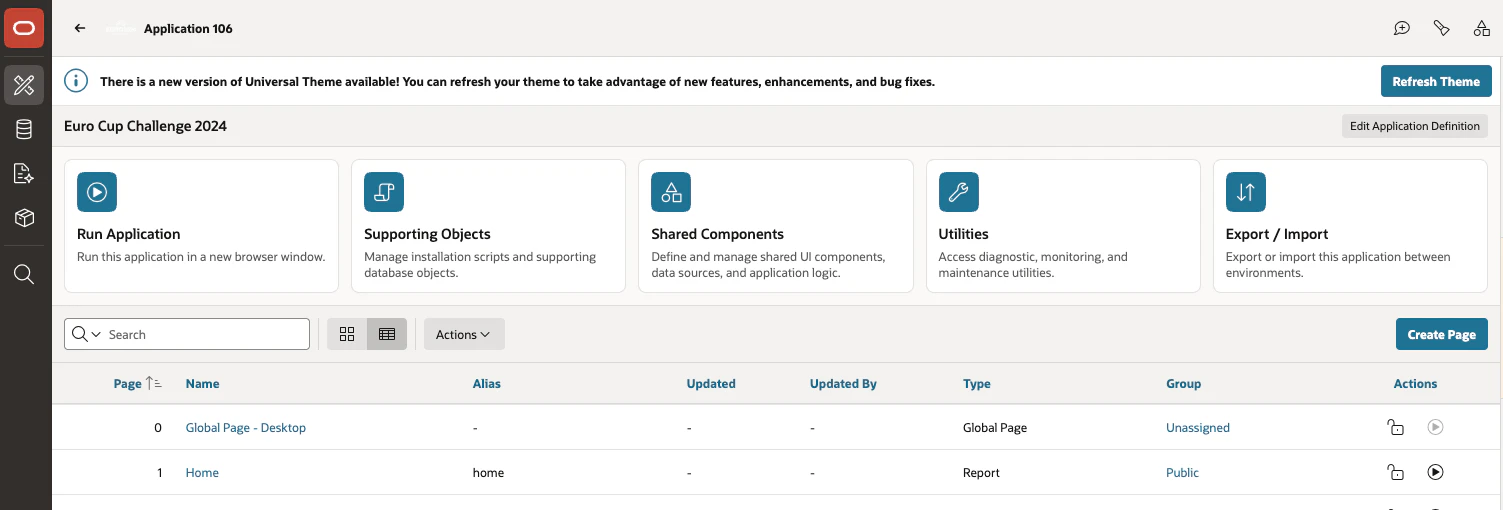
The following actions I perform.
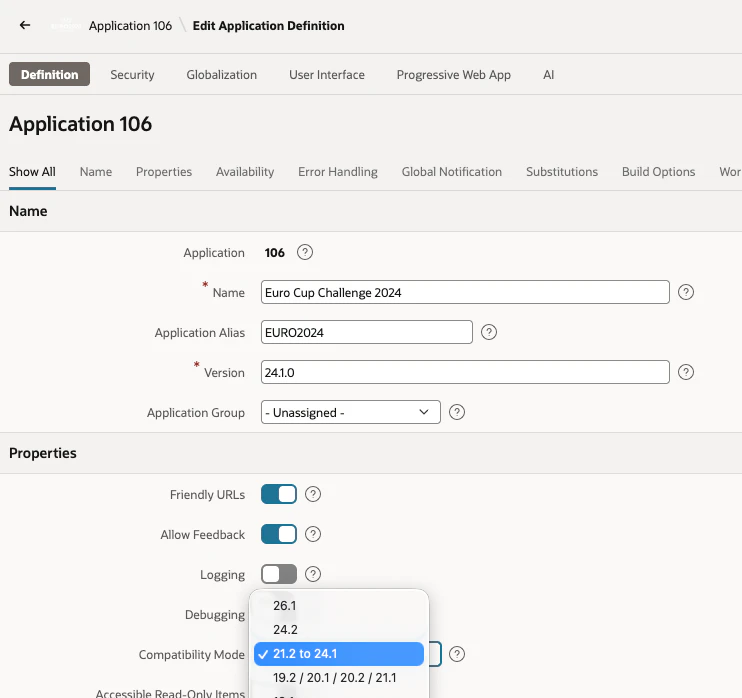
Change the Compatibility Mode to 26.1. Click the Edit Application Definition button and in Properties make the change from “21.2 to 24.1” to “26.1”
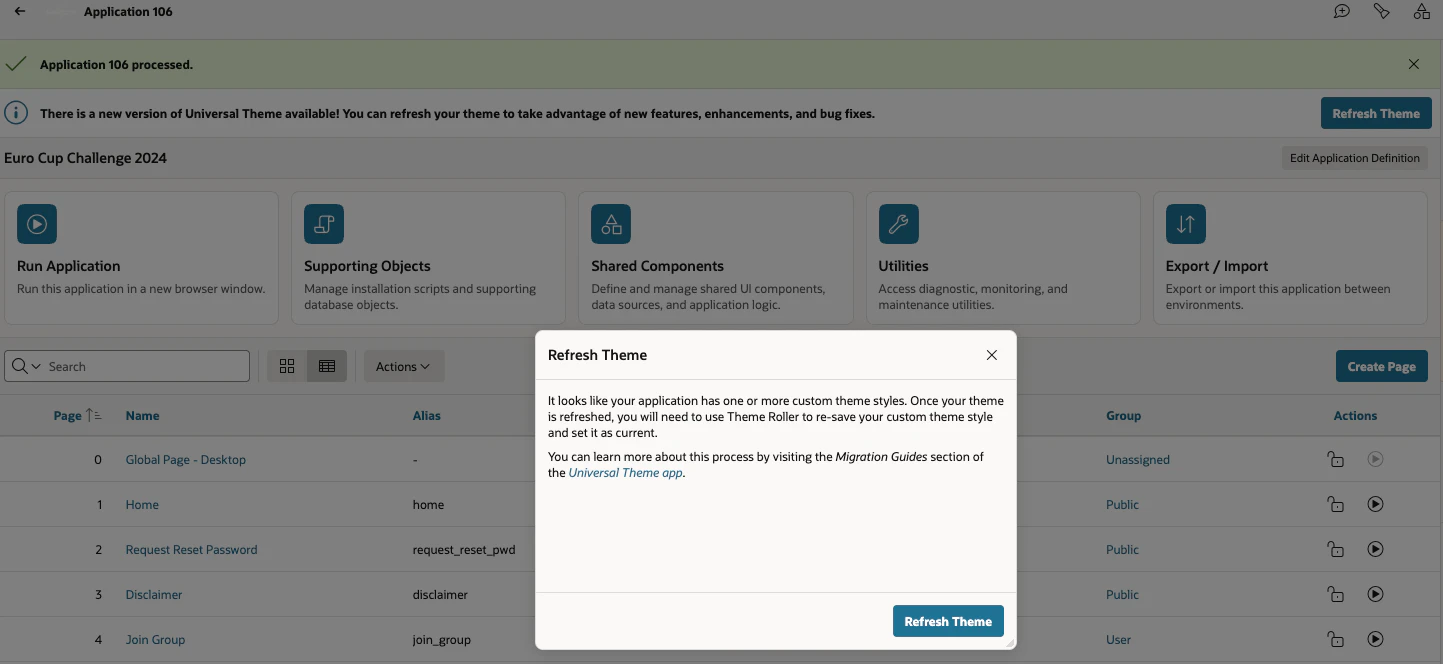
Next Refresh the Theme. Hit the Refresh Theme button
Check the plug-ins you use and see if some are unnecessary because the feature is now built-in as a native component. In my case both plug-ins are now native in APEX and can be replaced.
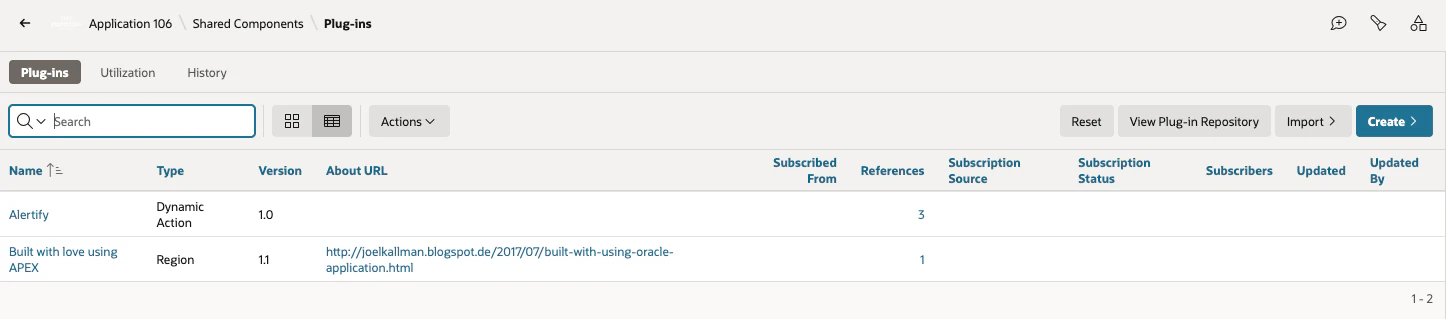
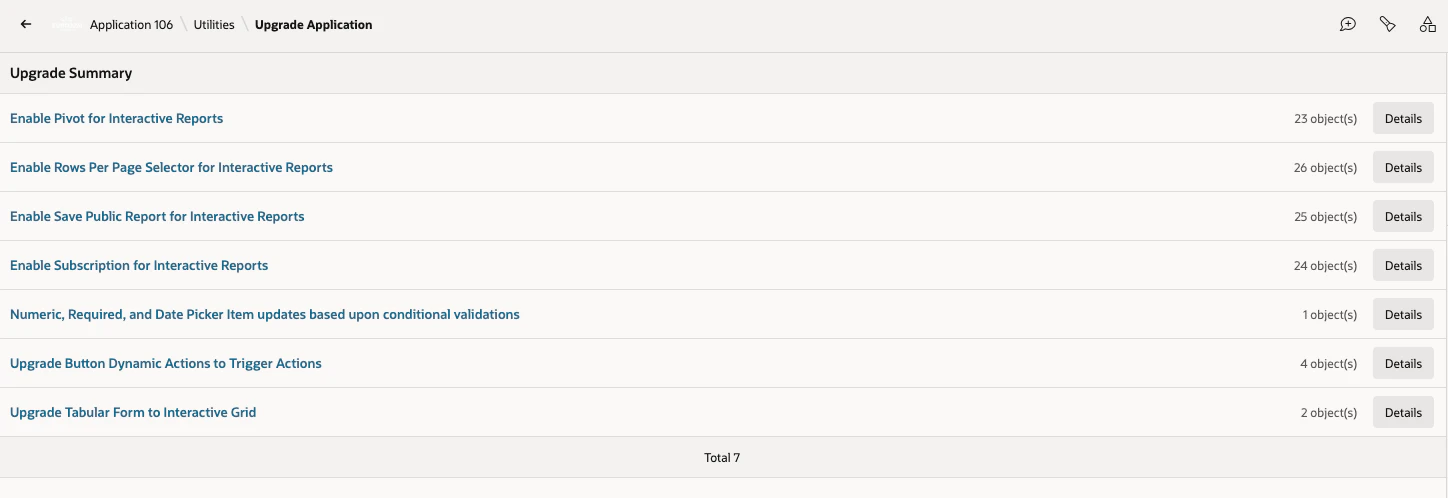
Finally upgrade the application components by going to Utilities > Upgrade Application, click on Details and follow along by selecting the proposal and hit the Update button. In case some features can’t be automatically be upgraded, try to do it manually.
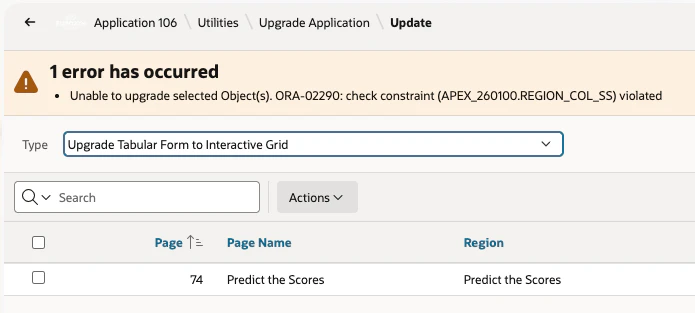
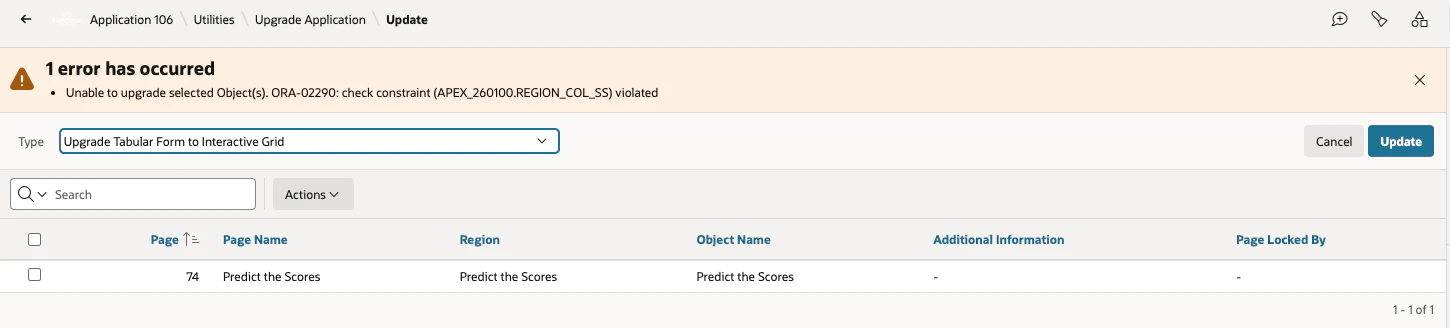
Here’s an example of an old component, a tabular form, which has a derived column and could not be upgraded to an Interactive Grid automatically. Removing the order by and derived column fixed the issue.
There are a couple other things you can check, for example in Shared Components > User Interfaces check the JavaScript section to not include the deprecated JavaScript functions. Check the security attributes for session state protection and the used hash value.
Once the above is done, try to export your app in APEXlang format.
Go to Export/Import and Select APEXlang as export format.
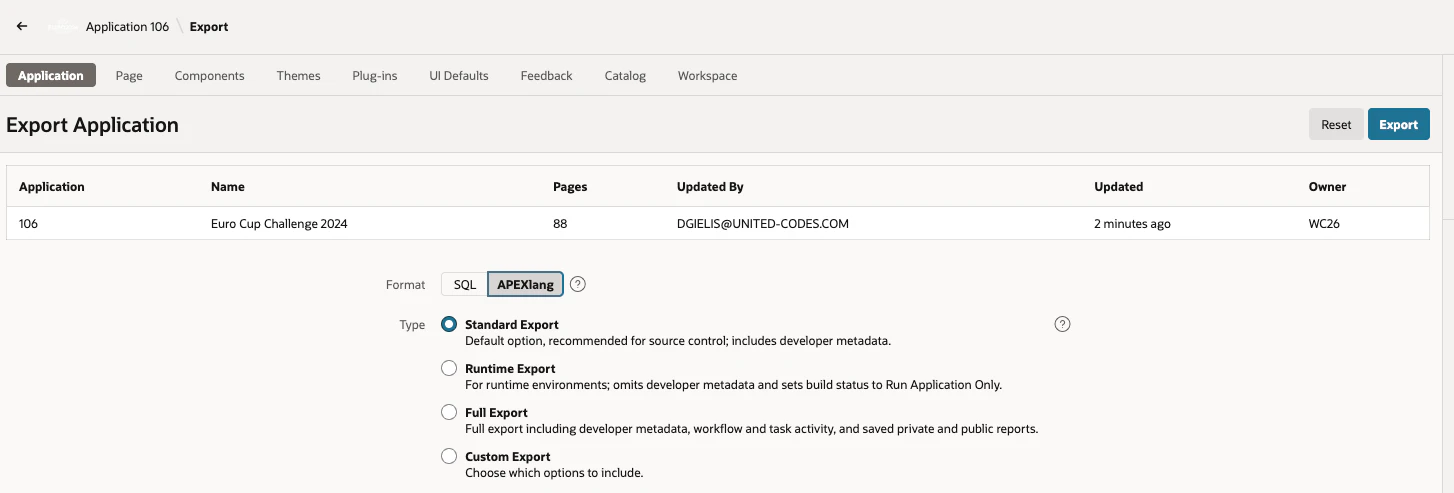
Normally you get a zip file with all the files, but in my case the zip was invalid.
Now the question is why? In short, I tried two methods; debug my own session, but the easiest solution was to use SQLcl to try and export the APEX app.
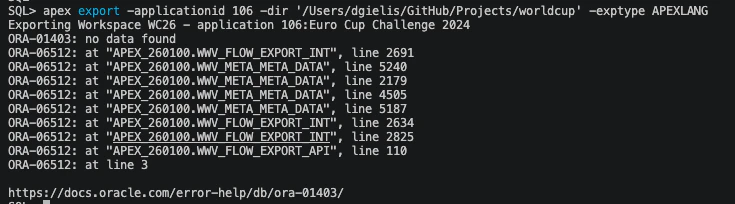
So there is a meta-data issue in my APEX app. APEX 26.1 was a major rewrite, where a lot of the meta-data got changed, for example default values and static ids are now consistant and components have strict structures. The above error I consider a bug and should be addressed by Oracle, because we as developers have no idea what is wrong. You should report these issues to the APEX dev team. I debugged this issue myself and it turned out that in one of my Authentication Schemes a default value was not set, but there was no way for me to change it in the builder.
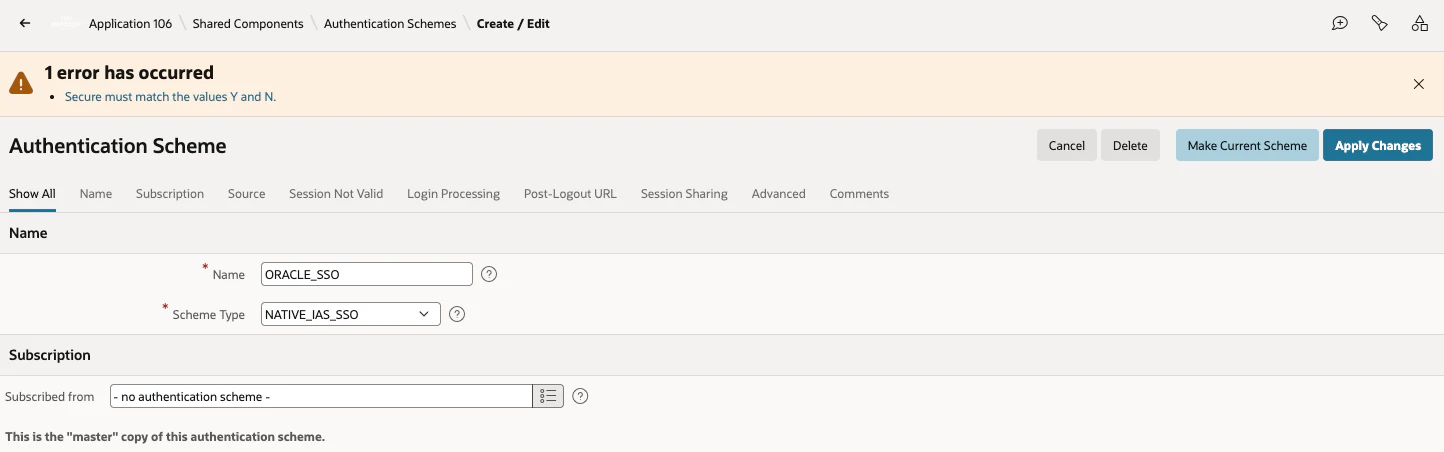
Edit 29-MAY-2026: Patrick Wolf told me it’s not really an incorrect default value, but the authentication scheme “Oracle Application Server Single Sign-On” (NATIVE_IAS_SSO) is really old and no longer available.
I consider this a rare issue. To get around the issue, I exported my app in SQL format, opened the sql file in VS Code, searched for the Authentication scheme and removed the code.
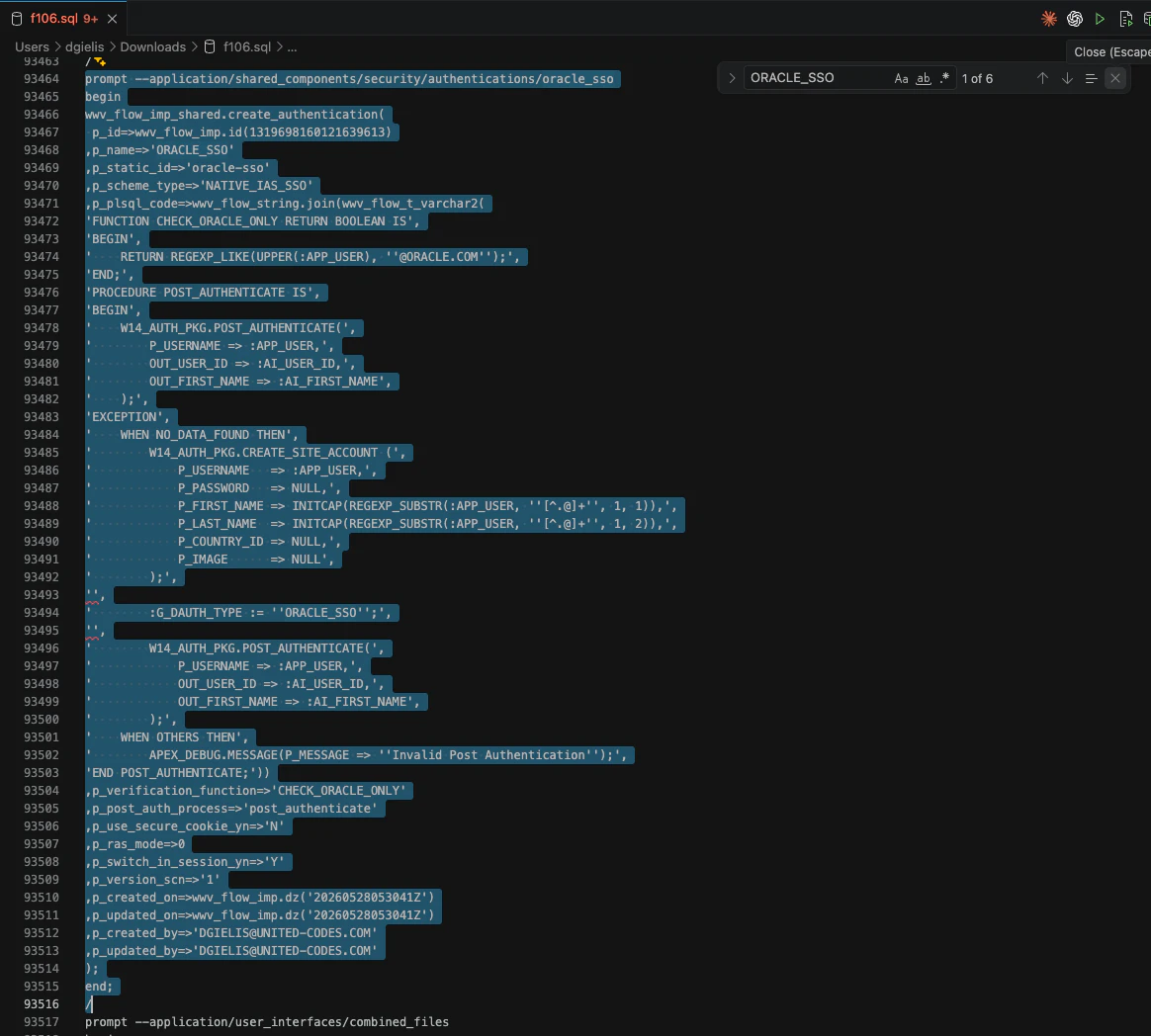
After that reimport the app again and replace the app.
Next try the export to APEXlang again.

Cool, now it worked.
APEXlang is why more strict in defining an APEX app. Where the builder hides options, with APEXlang you are in a text file and can type anything. This is why Oracle provides a validation of the files. You might think that if you were able to export your app to APEXlang, the files are clean, but for older apps they might not be. Oracle warned about this, there might be manual changes needed as APEX is now way more strict about things. For example I might have a component in APEX that I commented out, but has a failing SQL statement or a reference to a component that doesn’t exist anymore. My APEX app works perfectly, but APEXlang won’t be able to validate it as there are failing components, even tho they are commented out. So there is strict validation going on.
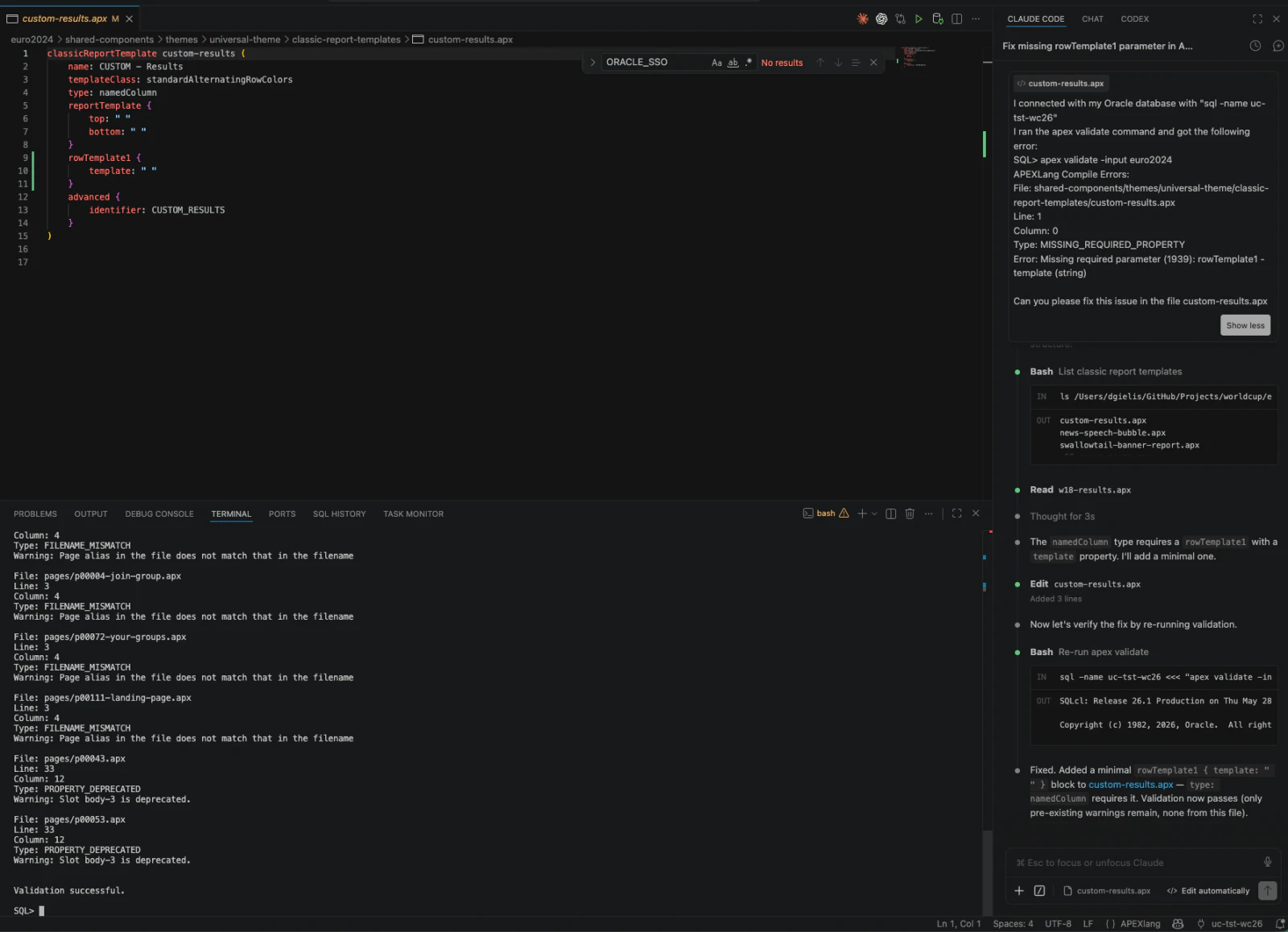
So, lets move on and validate our APEX app. In SQLcl, you can run the apex validate command:
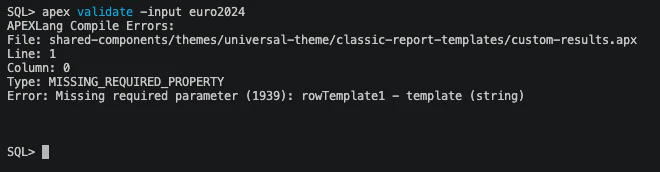
And as expected, I have some things to fix.
The easiest way for me to fix was just tell Claude to fix the issue for me.
If you use Git, it’s easy to see what was changed, either in VS Code or for example in GitHub Desktop
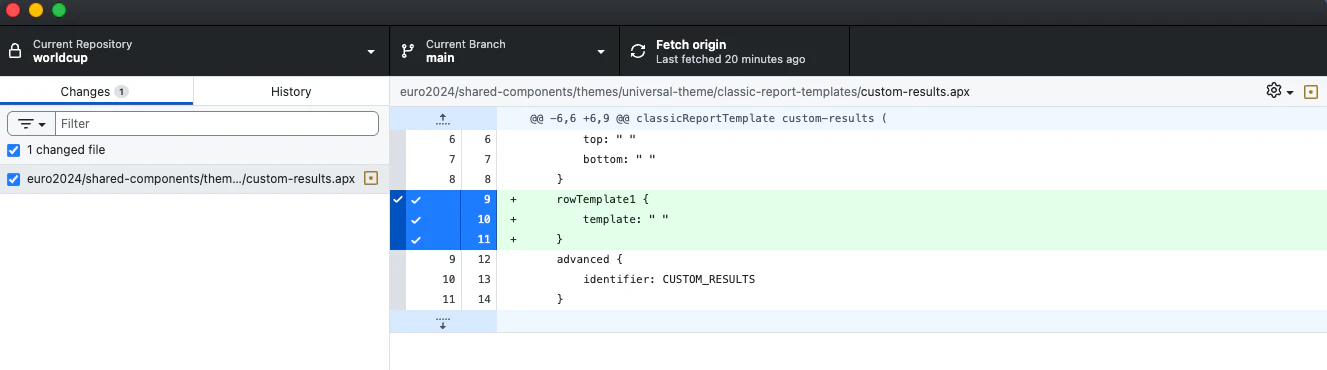
Edit 29-MAY-2026: Patrick Wolf told me it’s better to remove the custom results template entirely instead of adding an empty template.
After that I validated the app and validation was successful, but now I got some warnings. Those we will fix later. In case you want to know more about the validation with APEXlang, Steve Muench did a good blog post.
This is a good point to import the APEX app again. If all is good, you are ready to continue doing development with APEXlang.
Note; I didn’t go into much detail on my setup and doing AI-driven development with Oracle APEX. This will be part of my blog series on the APEX Developer reinvented.
Comments
No comments yet. Be the first.